Master Live Presentations with Presentify: Cursor Highlighting, Whiteboard, and iPad Drawing
Whether you're running a live stream, teaching an online class, or presenting to clients, your audience needs to know where to look. Presentify is a Mac menu bar app that helps with three features in particular: cursor highlighting, a whiteboard, and drawing from an iPad with Apple Pencil.
Never Lose Your Audience with Cursor Highlighting
One of the most common questions on a screen share is "Where's your cursor?" Presentify's cursor highlight puts a visible halo around your pointer so people can follow it. Press ⌃S (Control + S) to turn it on or off from any app.

Customizable Cursor Highlights
You can tune the highlight in Settings > Cursor:
- Shape: a ring, a squircle, or a rhombus
- Color, border, opacity and size, so it contrasts with your content
- Click animations, with different animations for left and right clicks
- When it shows: hide it while the mouse is idle (the "Turn Off When Inactive" option, on by default), or use Highlight Only on Clicks to show a pulse only when you click
While the highlight is on, ⌃- and ⌃= make it smaller or larger.
Spotlight and Zoom
Presentify also has two related cursor tools. Spotlight (⌃L) dims everything except an area around your cursor, and Zoom (⌃Z) magnifies the area under the cursor, or the whole screen with ⌃/. Use them when a highlight alone isn't enough, such as small text in a code editor or a busy dashboard.
Perfect for Every Presentation Scenario
- Live coding sessions: point at a line or variable instead of saying "this line here"
- Software demos: guide people through menus and buttons
- Educational content: help students follow diagrams, charts and data
- Design reviews: point at spacing, components and color choices as you talk
Turn Your Screen into a Whiteboard
Sometimes you need a clean page to explain a concept or work through a problem. In annotate mode (⌃A), press W to switch to Presentify's whiteboard.

What the Whiteboard Gives You
- A clean background that hides the clutter of your desktop and apps
- A background color you choose, so it can match your slides or brand
- The same tools as screen annotation: free hand, arrows, rectangles, circles, text, the highlighter, and your five favorite colors
- One-key access from annotate mode, so you don't break your flow
Ideal Whiteboard Use Cases
- Brainstorming: start with a blank page and build ideas as you talk
- Math and science: work through equations and diagrams step by step
- Process mapping: sketch flowcharts on the fly
- Planning: rough out wireframes, user journeys or timelines
Draw with an iPad and Apple Pencil
This is where Presentify shines for teachers and creative work. Connect your iPad to your Mac with Sidecar, Astropad or Duet, and you can use an Apple Pencil to draw on your Mac screen during live presentations or recordings.

Why Draw with a Pencil
- Handwriting that looks like handwriting: a pencil is far easier to write and sketch with than a mouse or trackpad
- Precision: circle a single word or draw a neat arrow without fighting the cursor
- Natural movement: annotate the way you'd write on paper or a whiteboard
Presentify also works with drawing tablets such as Wacom and XP-Pen.
Setup
- Connect your iPad to your Mac using Sidecar (built into macOS), Astropad or Duet
- Start Presentify's annotate mode with ⌃A
- Draw with your Apple Pencil on the iPad, and the strokes appear on your Mac screen
- Switch tools with Presentify's keyboard shortcuts or the on-screen control panel
Professional Applications
- Architects and designers: mark up plans or mockups during client calls
- Educators: draw diagrams and solve problems the way you would on a board
- Consultants: sketch explanations during video calls
- Content creators: add handwritten notes to tutorials
Features That Help Every Presentation
Keyboard Shortcuts
Almost every Presentify action has a shortcut, and you can customize them in Settings > Shortcuts.
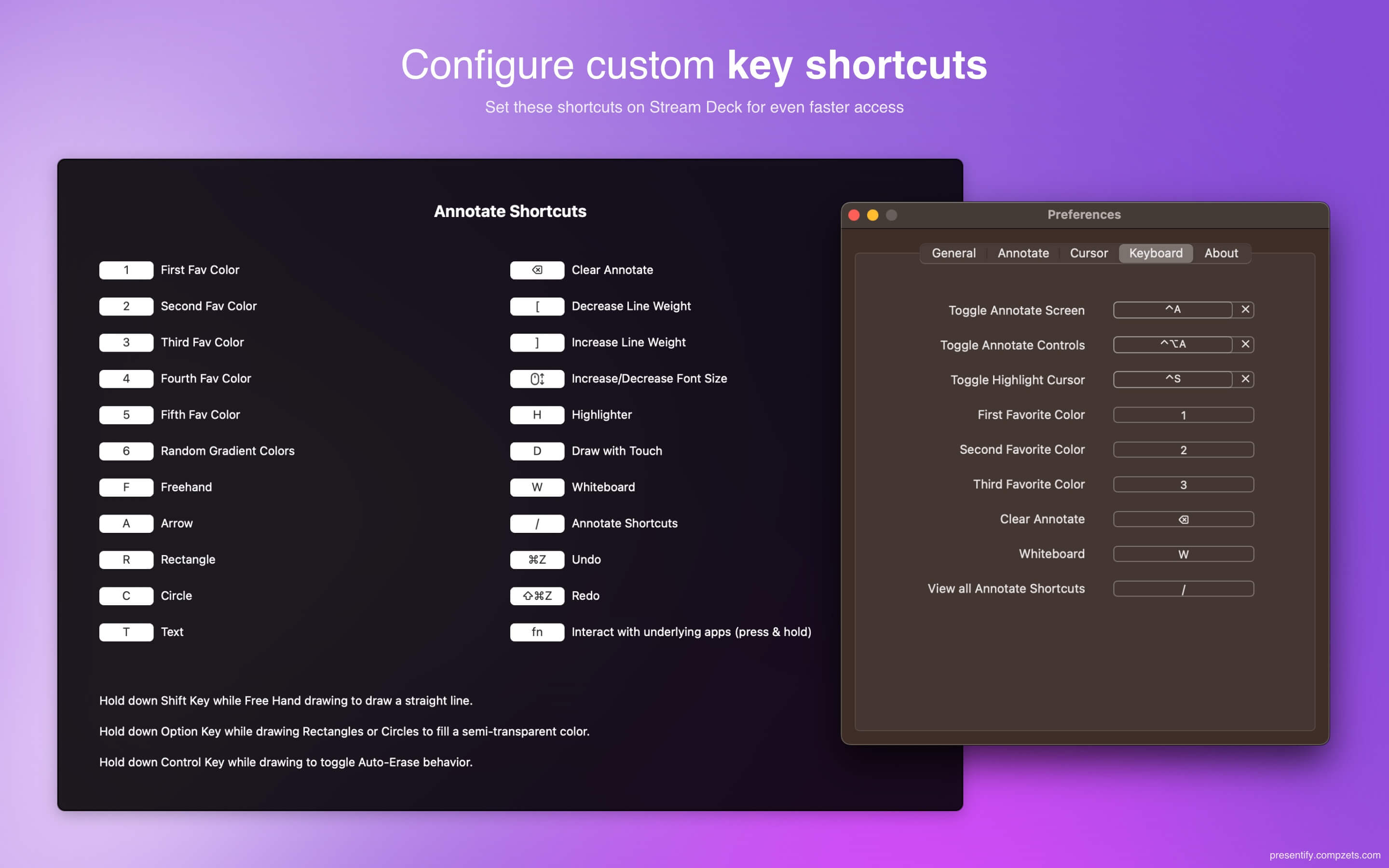
- Annotate Screen: ⌃A (or ⌃⌥A to annotate without the control panel)
- Colors: 1 to 5 for your favorite colors, 6 for random gradient colors
- Tools: F (free hand), A (arrow), R (rectangle), C (circle), T (text), H (highlighter)
- Undo and redo: ⌘Z and ⇧⌘Z
- Help: press / in annotate mode to see every shortcut
Interactive Mode for Live Streaming
Interactive Mode suits streamers and teachers who mostly work in another app:
- Presentify stays in the background until you need it
- Hold the Fn key to annotate, then release it to go back to your app
- In normal annotate mode, holding Fn does the opposite: it lets you click and scroll the app underneath, for example to advance a slide
What Users Say
"This elegantly designed app fills a great need, especially in these days of screen sharing on zoom, when you want to emphasize parts of a presentation as you speak. Ram Patra, the developer, was incredibly responsive and helpful when I had a question and quickly volunteered to produce a video explanation for others who might encounter the same issue. Highly recommended!" - James Sebenius, Harvard Business School
"Chatting with Ram was like app office hours. This is how all support should be. I've never downloaded an app and been able to chat directly with the developer for help. Really means a lot. Thanks again, Ram! I'm very excited to use this in teaching." - Christian Cardozo, MIT
"I think you'll be interested in Presentify. It works great with an iPad & Apple Pencil. Literally mindblowing for screencasts." - @_overment
"Just come across a potentially game-changing little app for Mac. Lets you draw on your screen, highlight your cursor and choose whether to have what you draw disappear soon after. Adds huge flexibility not just to videos but presentations" - Pete Richardson (@primarypete_)
"Lifesaving Teacher Tool. I use this tool every single day. It has supported my students with online learning, helping them to follow along during lessons." - Mmoskal
These quotes come from the testimonials on presentifyapp.com.
Best Practices
Cursor Highlighting Tips
- Choose a contrasting color that stands out against your content
- Size it for your audience: larger when people watch on small screens or when you present on a 4K display
- Keep "Turn Off When Inactive" on so the highlight gets out of the way when the cursor is still
Whiteboard Tips
- Pick a color scheme for your favorite colors and stick to it
- Use consistent shapes and symbols so diagrams are easy to read
- Press S in annotate mode to save a screenshot of an important diagram
iPad Tips
- Test your setup before an important presentation
- Practice switching tools so you don't break your flow
- Keep your Apple Pencil charged
Requirements and Compatibility
System Requirements
- macOS 13 Ventura or later (Mac App Store version)
- An iPad that supports Apple Pencil, for pencil drawing
- Sidecar, Astropad or Duet to connect the iPad
Works With
- OBS Studio for streaming and recording (use Display Capture)
- Zoom, Microsoft Teams and Google Meet (share your whole screen)
- Keynote, including presentation mode, and PowerPoint
- Screen recording apps for educational content
Getting Started
Download Options
- Mac App Store: $14.99 in the US, one-time
- Presentify website: a direct download with a license key, or Homebrew
- Setapp: included in the subscription, with a 7-day free trial
Education and Business Discounts
Presentify offers a 50% discount to businesses and educational institutions that buy 20 or more copies through Apple Business Manager or Apple School Manager.
Conclusion
Remote presentations and live streams are easier to follow when people can see your cursor, a clean page when you need one, and handwriting instead of mouse scribbles. Presentify's cursor highlight, whiteboard and iPad drawing cover all three, and Spotlight and Zoom help when you need even more focus.
For more ideas, see How to Make Online Classes More Interactive on Mac and How to Make Client Demos Easier to Follow on Mac.
Catch these apps on sale: many paid Mac apps, including presentation apps, run discounts at least once a year, most often around Black Friday. Subscribe to the Apps.Deals newsletter to hear when the deals arrive.
Note: First published in June 2025 and updated in October 2026. Features and prices are current as of October 2026 and can change; verify them on each official site before buying.
Disclosure: Presentify is made by Softal, the same company behind Apps.Deals. This post also contains an affiliate link; if you buy through it, we may earn a commission at no extra cost to you.
Presentify: Draw, highlight, and zoom on your Mac screen.
Annotate your screen, highlight your cursor, spotlight key areas, and zoom in during presentations, demos, tutorials, and screen shares.