Transform Your Remote Code Reviews with Presentify: The Developer's Secret Weapon
Remote code reviews are a core part of modern software development, but explaining complex code changes through text comments can be frustrating and time-consuming. Presentify, a Mac screen annotation app, helps by letting you draw on, highlight and point at code while you talk through it.
The Challenge of Remote Code Reviews
Traditional code review workflows rely heavily on written comments and static screenshots. While platforms like GitHub, GitLab, and Bitbucket provide excellent diff views, they fall short when you need to:
- Explain complex logic flows across multiple files
- Highlight specific code patterns or anti-patterns
- Guide junior developers through architectural decisions
- Demonstrate refactoring suggestions in real-time
- Provide visual context for security vulnerabilities
Text-based feedback often leads to misunderstandings, back-and-forth clarifications, and lengthy comment threads that could be resolved in minutes with visual explanation.
How Presentify Transforms Code Reviews
Presentify brings the whiteboard experience to your code editor, allowing you to annotate, highlight, and explain code changes with the same clarity as an in-person review session.
Real-Time Code Walkthroughs
With Presentify's screen annotation features, you can:
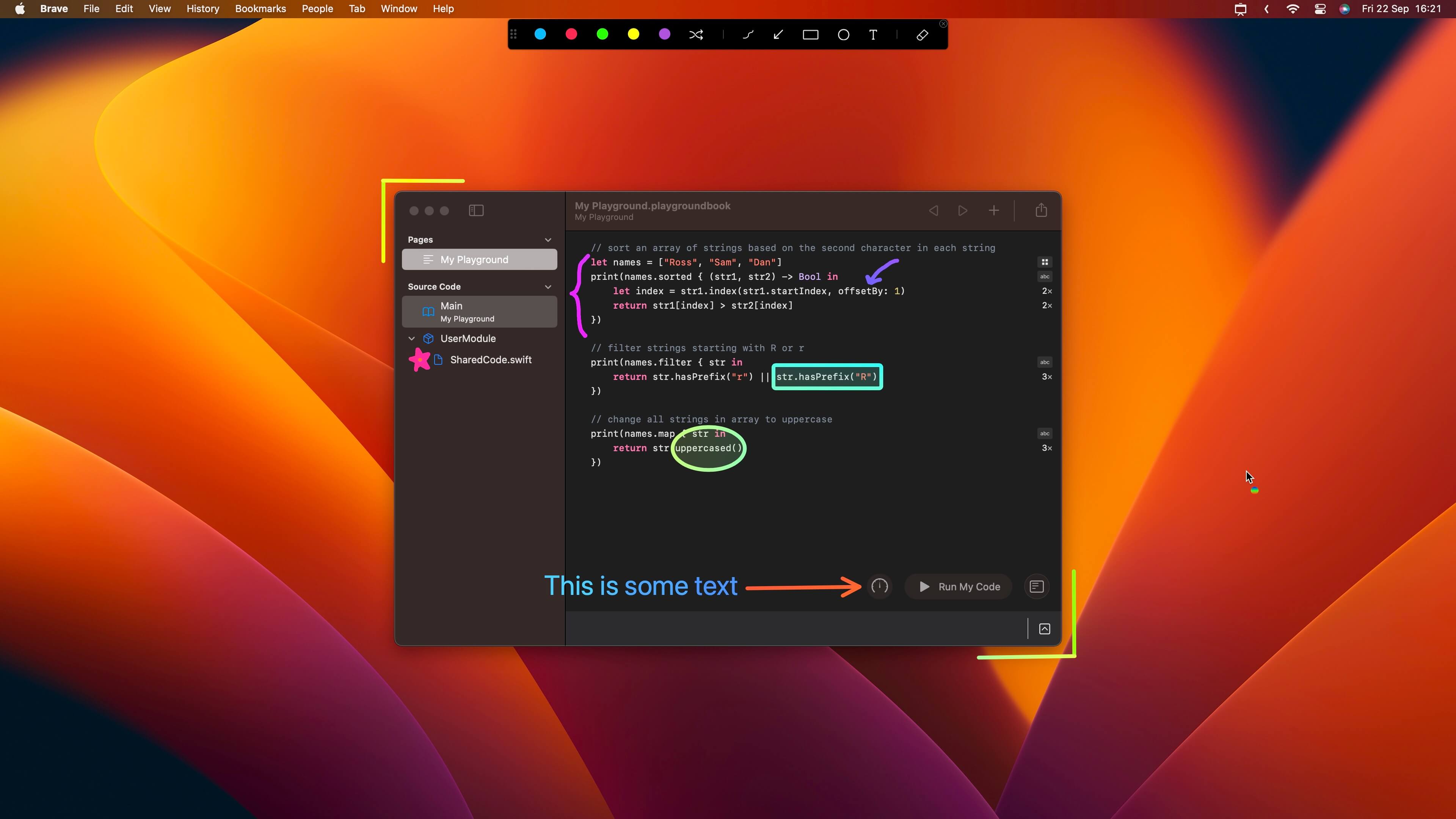
- Circle and highlight specific code blocks while explaining their purpose
- Draw arrows to show data flow between functions and components
- Add text annotations directly on your IDE to explain complex algorithms
- Use the highlighter tool to emphasize critical sections without obscuring the code
Interactive Feedback Sessions
Presentify's Interactive Mode feature is perfect when you quickly want to highlight something while you are coding:
- Enable Interactive Mode and start annotating; Presentify then waits in the background
- Hold the Fn key to annotate, and release it to get back to coding
- Use Auto-Erase to keep explanations focused and clean (hold Control while drawing to toggle it, or press
Deleteto clear everything)
In the normal annotate mode, holding Fn works the other way round: your drawings stay on screen while you click, scroll and type in the editor underneath.
This seamless switching between annotation and coding means you can review code, add visual feedback, and test changes without interrupting your flow.
Specific Use Cases for Development Teams
Security Code Reviews
When reviewing security-sensitive code, visual context is crucial:
- Highlight potential injection points with red annotations
- Circle authentication checks that might be bypassed
- Draw flow diagrams showing attack vectors
- Add warning text for critical security considerations
Architecture Reviews
For system design discussions:
- Annotate class diagrams directly in your IDE
- Show component relationships with connecting lines
- Highlight coupling issues between modules
- Explain design patterns with visual overlays
Performance Optimization Reviews
When discussing performance improvements:
- Circle bottleneck functions and explain why they're problematic
- Highlight memory allocation patterns that need attention
- Draw before/after diagrams of optimization strategies
- Annotate profiler output with explanatory notes
Mentoring Junior Developers
Presentify excels at educational code reviews:
- Step-by-step code walkthroughs with progressive annotations
- Visual explanation of best practices vs anti-patterns
- Interactive debugging sessions with annotated breakpoints
- Architectural concept illustrations drawn directly over code
Setting Up Your Code Review Workflow
1. Learn the Default Shortcuts
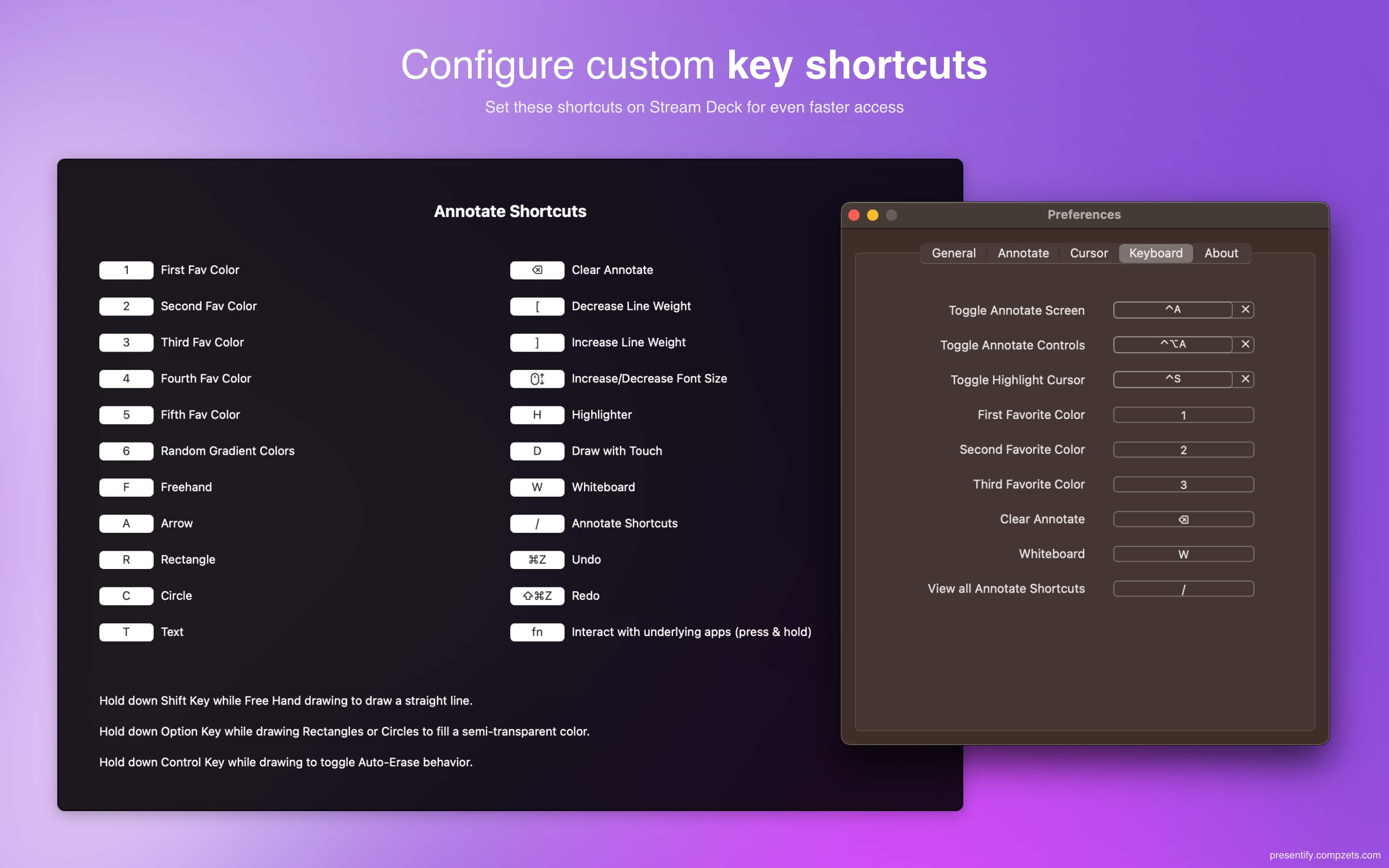
These are Presentify's defaults, and you can change them in Settings > Shortcuts:
- Start or stop annotating:
⌃A(Control + A) - Highlight your cursor:
⌃S - Inside annotate mode:
Hfor the highlighter,Rfor rectangles,Afor arrows,Tfor text, and1to5for your favorite colors - See every annotate shortcut: press
/while annotating
2. Prepare Your Environment
Before starting a code review session:
- Close unnecessary applications to reduce distractions
- Set up dual monitors if available (code on one, notes on another)
- Configure your IDE with appropriate font sizes for screen sharing
- Test your screen sharing setup with annotation mode enabled
3. Record for Asynchronous Reviews
Use Presentify with screen recording software to create annotated code review videos:
- Record your explanation while annotating the code
- Share the video with team members in different time zones
- Include timestamps for specific sections
- Add follow-up annotations to address questions
Integration with Popular Development Tools
Visual Studio Code
Presentify works seamlessly with VS Code's interface:
- Annotate over the integrated terminal
- Highlight issues in the Problems panel
- Draw on the minimap to show file structure
- Add notes to extension recommendations
JetBrains IDEs (IntelliJ, PyCharm, WebStorm)
Perfect for complex refactoring explanations:
- Annotate refactoring suggestions in real-time
- Highlight inspection warnings with explanatory context
- Draw on database tool windows
- Explain debugging configurations visually
Xcode
Essential for iOS code reviews:
- Annotate Interface Builder layouts
- Highlight memory graph issues
- Draw on simulator screens
- Explain build configuration changes
Best Practices for Annotated Code Reviews
Do's:
- Use consistent colors for different types of feedback (red for issues, green for good practices)
- Keep annotations concise: supplement, don't replace, verbal explanation
- Clear annotations between files to avoid confusion
- Save screenshots of important annotated explanations for documentation by pressing the
Skey in annotate mode
Don'ts:
- Don't over-annotate: too many visual elements can be distracting
- Avoid tiny text: annotations should be readable when screen sharing
- Don't leave annotations up permanently: clear them after each section, or use Auto-Erase
- Don't forget to share your screen before starting annotation mode
What to Expect
Visual feedback won't replace written review comments, and it shouldn't: the pull request is still the record. Where it helps is the live part of a review, when a short call with a few arrows and boxes can settle a question that would otherwise take a long comment thread. A useful habit is to save a screenshot of any diagram that led to a decision and attach it to the pull request.
Getting Started with Presentify for Code Reviews
- Download Presentify from the Mac App Store
- Configure your preferred hotkeys for quick access during reviews
- Practice with the annotation tools before your first team session
- Set up your screen sharing software to work with annotation mode
- Create a team guideline for annotation colors and conventions
Advanced Tips for Power Users
Custom Color Coding System
Establish a team-wide color convention:
- Red: Critical issues that block merge
- Yellow: Suggestions for improvement
- Green: Good practices worth highlighting
- Blue: Questions or discussion points
- Purple: Architecture or design considerations
Presentation Mode Integration
Use Presentify with presentation software for:
- Technical talks about code architecture
- Lunch-and-learn sessions with annotated code examples
- Client demos with visual code explanations
- Conference presentations about development practices
Why Presentify Over Other Annotation Tools?
Presentify fits code reviews well for a few practical reasons:
- It stays light: it's a native menu bar app, so it doesn't compete with your IDE for resources
- Cursor tools: a cursor highlight, Spotlight (
⌃L) and Zoom (⌃Z) for pointing at a specific line or reading small text - Auto-erase to keep annotations clean and focused
- Keyboard-first: almost every action has a shortcut you can customize
- Works over everything: editors, terminals, browsers, simulators and meeting apps
If you only need basic drawing over a shared screen, the annotation tools built into Zoom or Teams may be enough; Presentify is worth it when you want the same tools in every app and in recordings.
Conclusion
Remote code reviews don't have to be a struggle of endless text comments and misunderstood feedback. With Presentify, you can bring the clarity and effectiveness of in-person code reviews to your distributed development team.
The visual context that Presentify provides transforms complex technical discussions into clear, actionable feedback sessions. Whether you're explaining architectural decisions, highlighting security concerns, or mentoring junior developers, Presentify gives you the tools to communicate with the clarity your code deserves.
Presentify costs $14.99 one-time on the Mac App Store and needs macOS 13 or later. It's also included in Setapp, which has a 7-day free trial if you want to try it first. For a broader workflow, read How to Make Remote Pair Programming Easier to Follow on Mac.
Catch these apps on sale: many paid Mac apps, including developer and presentation tools, run discounts at least once a year, most often around Black Friday. Subscribe to the Apps.Deals newsletter to hear when the deals arrive.
Note: First published in June 2025 and updated in October 2026. Features and prices are current as of October 2026 and can change; verify them on each official site before buying.
Disclosure: Presentify is made by Softal, the same company behind Apps.Deals. This post also contains an affiliate link; if you buy through it, we may earn a commission at no extra cost to you.

Presentify: Draw, highlight, and zoom on your Mac screen.
Annotate your screen, highlight your cursor, spotlight key areas, and zoom in during presentations, demos, tutorials, and screen shares.