10 Essential Mac Apps to Use With Stream Deck That Won't Break the Bank
The Elgato Stream Deck turns actions into physical buttons. Some apps get an official plugin from the Elgato Marketplace; almost everything else can be driven through Stream Deck's built-in Hotkey and Multimedia actions, as long as the app has keyboard shortcuts.
That second point matters for your budget. You don't need expensive software to get a lot out of a Stream Deck: most of the apps below are free, and the two paid ones are one-time purchases. Here are ten Mac apps that work well with it.
1. Presentify: Screen Annotation and Cursor Highlight
Good for: presenters, teachers, developers, and anyone who shares their screen.
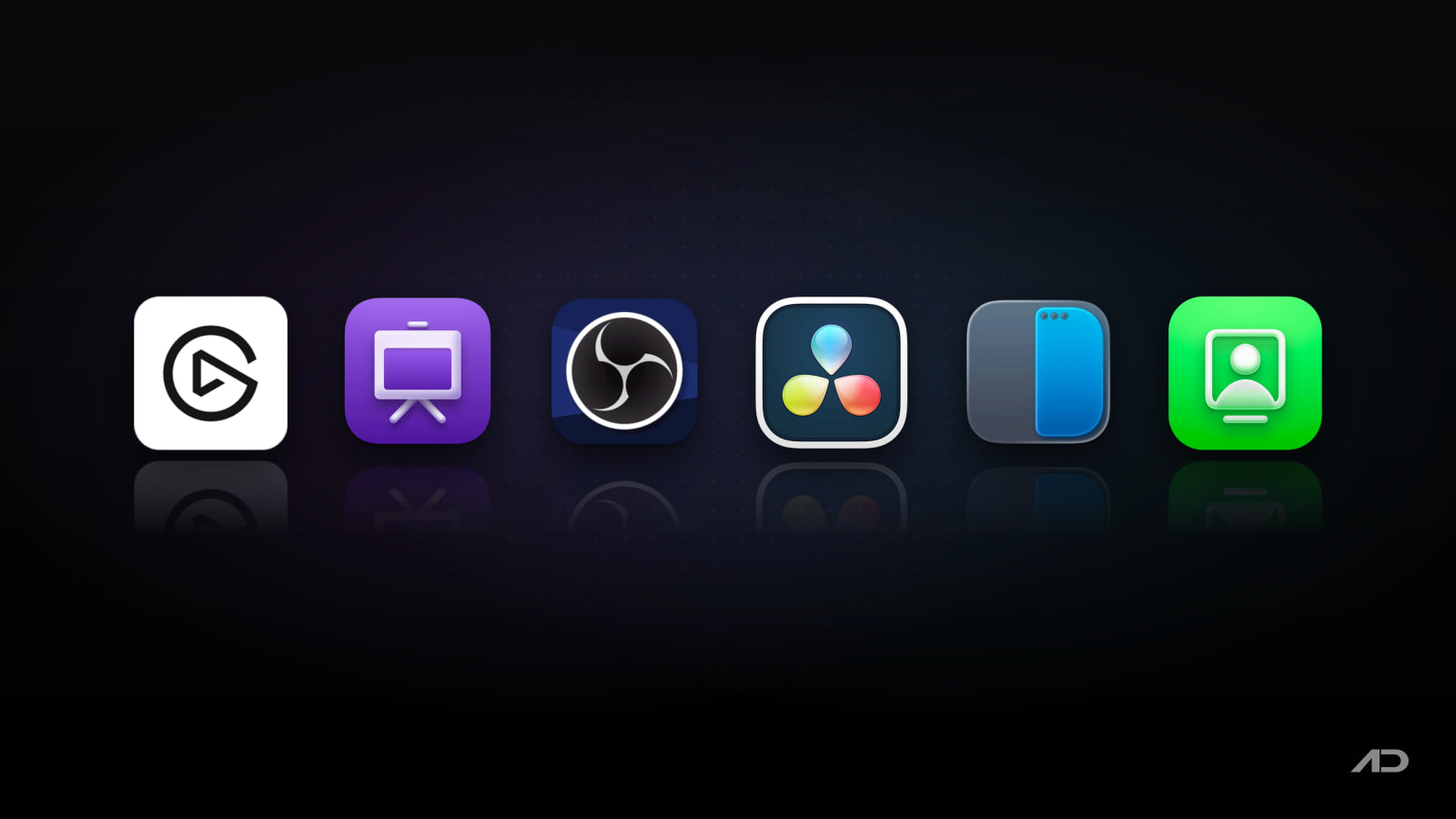
Presentify lets you draw over any app, highlight your cursor, add a spotlight, zoom in on small details, and open a whiteboard. Almost every action has a keyboard shortcut, and you can change them in Settings > Shortcuts, which makes Presentify easy to map to Stream Deck keys.
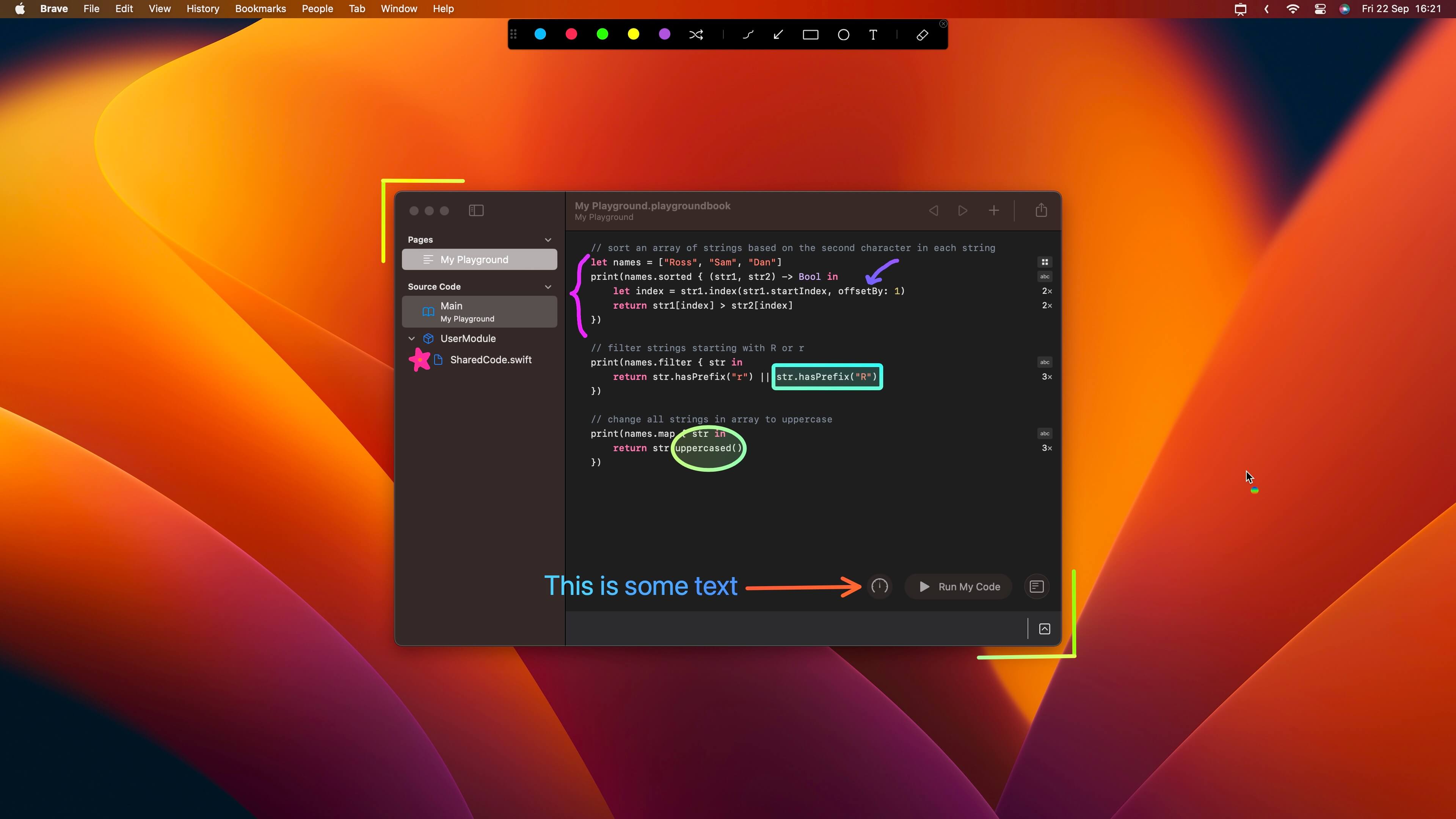
Useful keys to set up (default shortcuts):
- Annotate Screen: ⌃A
- Highlight Cursor: ⌃S
- Spotlight Cursor: ⌃L
- Zoom Cursor: ⌃Z
- Inside annotate mode: W for the whiteboard, 1 to 5 for your favorite colors, F, A, R, C and T for tools, and Delete to clear
It works over Zoom, Google Meet, Microsoft Teams, Keynote, PowerPoint and OBS. For a full key layout, see the Presentify keyboard shortcuts list.
Cost: $14.99 one-time on the Mac App Store, with a direct download and Setapp also available. Requires macOS 13 or later.
2. OBS Studio: Free Streaming and Recording
Good for: live streamers, podcasters, webinar hosts, and anyone recording video.
OBS Studio is free, open-source recording and streaming software. Elgato's free OBS Studio plugin for Stream Deck works on macOS and gives you keys for switching scenes, starting and stopping recording or streaming, and controlling audio sources. With Stream Deck's Multi Actions, one key can switch to a "starting soon" scene and mute your mic at the same time.
Cost: free.
3. DaVinci Resolve: Free Video Editing
Good for: video editors and creators who want professional editing without a subscription.
DaVinci Resolve is a full editing, color, effects and audio app, and the free version is very capable. Version 21 adds a Photo page and new AI tools; the paid DaVinci Resolve Studio adds more effects, AI features and higher-resolution, higher-frame-rate output.
Resolve has extensive keyboard shortcuts, so Stream Deck Hotkey actions can cover cuts, markers, playback, page switching and render starts. Build a dedicated Resolve profile so the keys change when the app is in front.
Cost: free (DaVinci Resolve Studio is a paid upgrade).
4. Music Control: Apple Music and Spotify
Good for: anyone who listens while working or plays background music on stream.
Stream Deck's built-in Multimedia actions (play/pause, next, previous, volume, mute) control whatever player is active on your Mac, including Apple Music and Spotify. If you use Spotify, the Elgato Marketplace also lists a Spotify plugin for controlling playback and volume from your keys.
Cost: free to set up; the music services themselves have their own plans.
5. Discord: Mute and Deafen in One Press
Good for: gamers, communities, and remote teams that talk on Discord.
Elgato's free Discord plugin runs on macOS and adds Mute and Deafen keys, so you can silence your mic or all incoming audio without hunting for the window. Discord asks you to authorize the Stream Deck software the first time you use it.
Cost: free.
6. Philips Hue and Home Assistant: Lighting and Smart Home
Good for: streamers who change lighting for each scene, and smart home users.
The Philips Hue plugin on the Elgato Marketplace controls lights, groups, rooms and scenes, including brightness and color. If your devices run through Home Assistant, a community Home Assistant plugin on the Elgato Marketplace can trigger scenes, scripts and automations and show sensor states on your keys.
Cost: Home Assistant is free; check each plugin's Marketplace listing, and you need the smart home hardware.
7. Music Production: GarageBand, Audacity and REAPER
Good for: podcasters, musicians and home producers.
Stream Deck can't replace a MIDI controller, but Hotkey actions are handy for transport and editing commands: record, play, stop, split, add marker, toggle a track. GarageBand is free on the Mac, Audacity is free and open source, and REAPER costs $60 with its discounted personal license.
Cost: free to $60.
8. Raycast: Launch Apps and Run Commands
Good for: Mac users who want one key for apps, scripts and commands.
Stream Deck's own System actions can open apps, files and websites. Raycast goes further: you can assign a hotkey to almost any Raycast command (window layouts, clipboard history, snippets, quicklinks, script commands, extensions), then map that hotkey to a Stream Deck key. The free plan covers these core features; Pro is a subscription that adds AI and sync. See our Raycast vs Alfred, LaunchBar and Spotlight comparison for more.
Cost: free (Pro is optional).
9. Rectangle: Free Window Management
Good for: anyone juggling several windows or displays.
Rectangle is free and open source. It snaps windows to halves, thirds, quarters and other positions, and moves them between displays, all with keyboard shortcuts. Map the ones you use most to Stream Deck keys and you can rearrange your workspace, or your OBS and chat windows, in one press. It supports macOS 10.15 and later.
Cost: free.
10. FaceScreen: Floating Camera Overlay
Good for: tutorial makers, streamers and teachers who want their face on screen.
FaceScreen shows a floating camera view on top of every other window, with an optional text label for your name, role or social handle. You can change the camera's shape, size, aspect ratio and colors, show several connected cameras on a Mac, and use the Mac-only Ring Light to brighten your face. Its customizable keyboard shortcuts toggle the camera, change its size and show or hide the text, which is exactly what you want on Stream Deck keys.
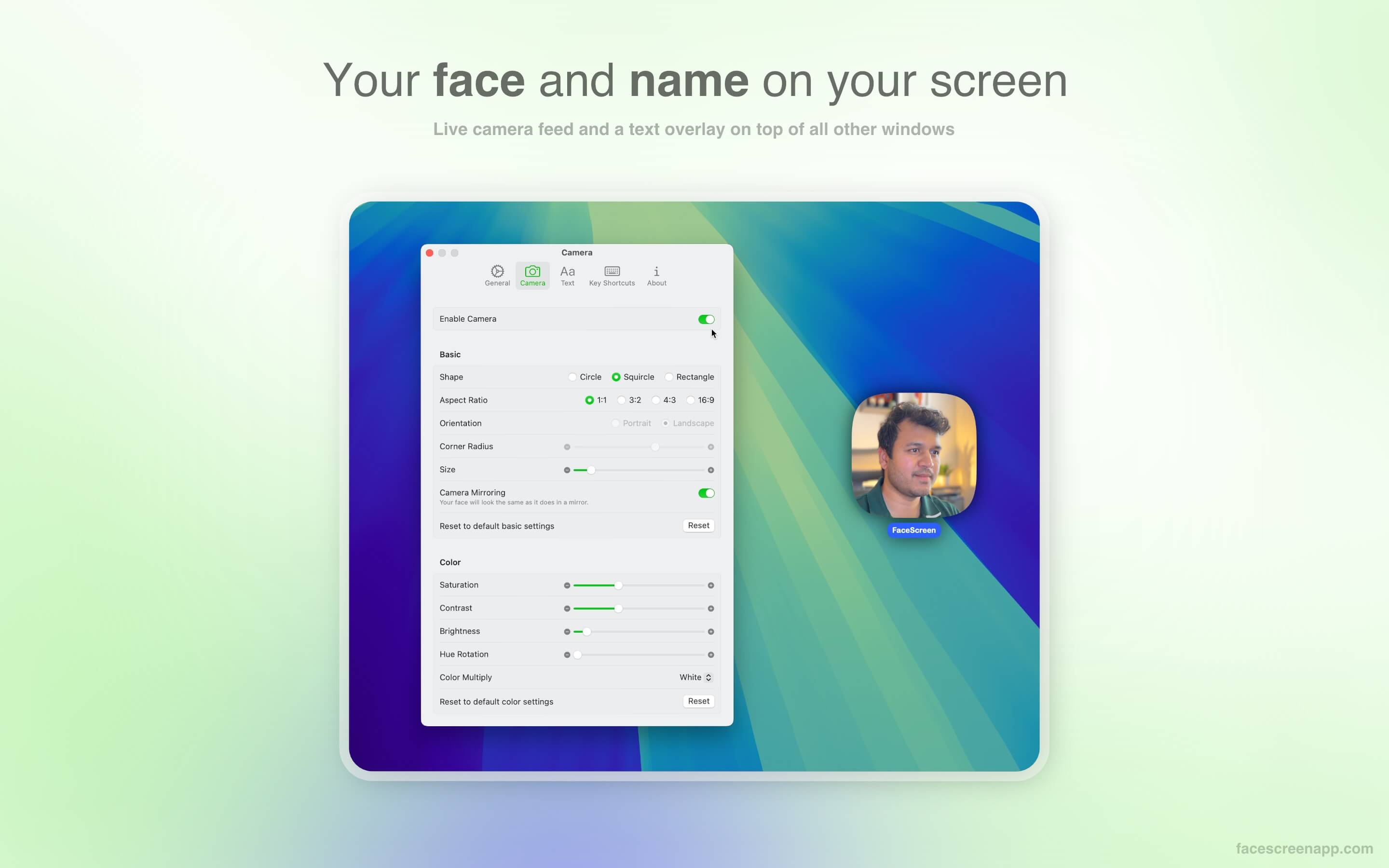
One App Store purchase covers the Mac, iPhone and iPad versions. It requires macOS 15 or later, or iOS and iPadOS 26 or later.
Cost: $5.99 one-time on the App Store.
Cost Breakdown
- Free: OBS Studio, DaVinci Resolve, Discord, Elgato's OBS Studio and Discord plugins, Home Assistant, GarageBand, Audacity, Raycast (free plan) and Rectangle
- One-time purchases: Presentify ($14.99), FaceScreen ($5.99), and REAPER ($60) if you produce audio
- Total for the two paid presentation apps: $20.98, with no subscriptions
Final Verdict
Start with the free apps that match what you do most: OBS for streaming, Rectangle and Raycast for everyday work, and the Discord or Hue plugins if you use those. Then add paid tools only where they save you real effort. Presentify is worth it if you present or teach on screen, and FaceScreen if you record tutorials with your face on screen.
Whatever you pick, the trick is the same: give each app its own Stream Deck profile, set its shortcuts once, and let the keys follow the app in front. If you also want to show the keys you press, read How to Display Keystrokes on Mac for Gaming and Streaming.
Catch these apps on sale: many paid Mac apps, including presentation and recording apps, run discounts at least once a year, most often around Black Friday. Subscribe to the Apps.Deals newsletter to hear when the deals arrive.
Note: First published in June 2025 and updated in October 2026. Features and prices are current as of October 2026 and can change; verify them on each official site before buying.
Disclosure: Presentify and FaceScreen are made by Softal, the same company behind Apps.Deals.
FaceScreen: Show your face and name on screen.
A stylish floating camera for video calls, live streams, and screen recordings. Available for Mac, iPhone, and iPad.