How to Keep Track of Daily Deadlines on Mac
It's 3:40 pm. The client handoff was due at 3:30, and you remember it only because their email just arrived. You knew about the deadline all morning; it was in a task app you hadn't opened since 9. Most missed same-day deadlines aren't planning failures. They're visibility failures: the time was written down, just not anywhere you were looking.
This guide is for anyone whose day has a few hard times in it: a freelancer with client handoffs, an editor with a publishing slot, an ops person with a 4 pm cutoff, a student with a submission portal that closes at noon.
Quick Takeaway
- Keep a separate, short list of today's timed tasks, apart from your full backlog.
- Give each one a deadline and a reminder lead time that matches how long the work takes, not a reminder at the due time.
- Put that list where you look all day. On a Mac, that's the menu bar.
- Apple's free Reminders and Calendar can do most of this. ToDoBar ($2.99) puts today's tasks, the next deadline and the time left in the menu bar, so you see them without opening an app.
Why Same-Day Deadlines Slip
We underestimate how long things take. In a well-known set of studies, Buehler, Griffin and Ross found that people predict they'll finish tasks sooner than they actually do, even when they know similar tasks ran late before (Journal of Personality and Social Psychology, 1994). A reminder at 3:30 for a 3:30 deadline is useless if the work takes 45 minutes.
Unfinished tasks nag at you until you plan them. Masicampo and Baumeister found that unfulfilled goals kept intruding on people's thoughts during other work, and that making a specific plan for the goal removed that effect (Journal of Personality and Social Psychology, 2011). Writing down when you'll do a task, not just that it exists, lets you focus on the work in front of you.
Big task apps hide the urgent few. A backlog of 80 tasks across projects is the right place for planning, but a poor place to notice that one thing is due in 40 minutes. Today's deadlines get buried among next month's ideas.
Full-screen work hides everything else. When you're in a design app, an editor or a call, the Dock, widgets and other windows are out of view. Notifications help, but they're easy to dismiss and forget.
A Simple Workflow That Works With Any App
- Start the day with a deadline pass (2 minutes). Go through email, your calendar and your task manager, and pull out only the tasks with a hard time today. Usually that's three to six items.
- Write the due time and an estimate. "Send invoice to Acme, due 12:00, 20 min". Then add a buffer: if past tasks of this kind have run long, assume this one will too.
- Set the reminder for the start time, not the due time. Due 3:30 with a 45-minute job and a 15-minute buffer means the alert should fire at 2:30.
- Keep the list visible. The list is only useful if you see it between tasks without having to go looking for it.
- Close the loop. Tick tasks off as you finish them. At the end of the day, move anything unfinished into tomorrow's pass and note what ran over, so tomorrow's estimates get better.
Doing it with the built-in apps
You can follow this workflow with what comes on every Mac:
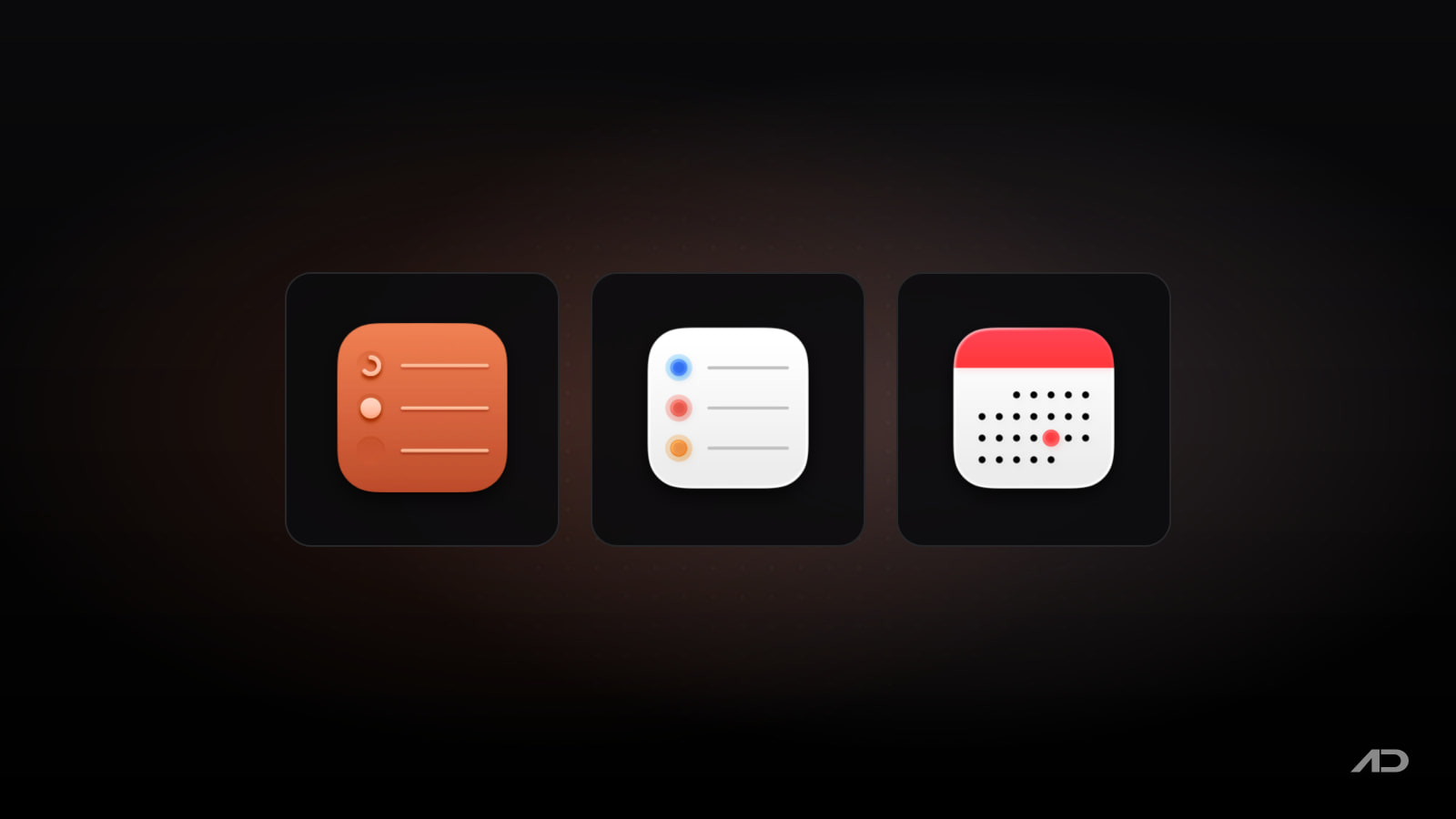
- Reminders: add each task with a date and time, and use the Today list. Reminders syncs to your iPhone and Apple Watch, supports repeating reminders, and you can add a Reminders widget to the desktop or Notification Center. Apple's Reminders User Guide covers the details.
- Calendar: block the working time before each deadline as an event with an alert, so the time is protected and visible to anyone who books your calendar.
- Notification style: in System Settings > Notifications, set the app you use to Alerts instead of Banners, so a deadline warning stays on screen until you dismiss it.
The gap is visibility. Reminders and widgets live in a window or behind other apps, so during a full-screen session you only learn about a deadline when the notification fires.
A Practical Mac Workflow With ToDoBar
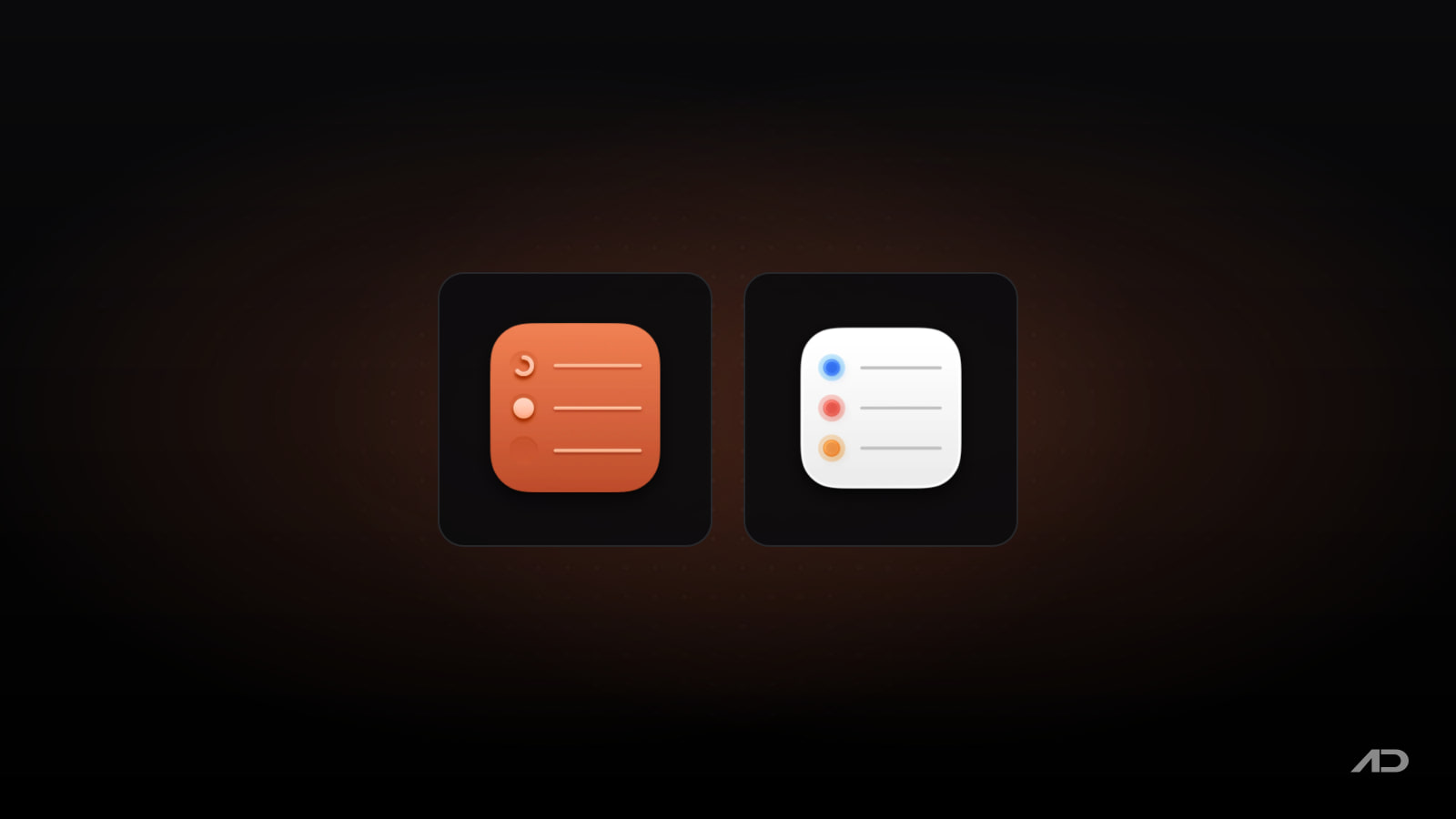
ToDoBar is a menu bar to-do list for one day's work, made by Softal, the company behind Apps.Deals. It's built around deadlines, which makes it a good fit for this workflow.
- Install it from the Mac App Store ($2.99 one-time in the US, macOS 13 Ventura or later).
- Add today's timed tasks. Click the menu bar icon, type the task and press Enter. Keep it to the deadline items from your morning pass; the full backlog stays in your main task app.
- Set a deadline on each task, and choose how far in advance ToDoBar should remind you. Use your estimate plus buffer as the lead time: 60 minutes for the 45-minute handoff, 10 minutes for a quick email.
- Show the next task in the menu bar. In ToDoBar's settings, choose to show the next pending task on the menu bar, or the number of pending tasks for the day. Now the next deadline is visible over any app, including full-screen ones that show the menu bar.
- Read the ring. Each task shows a colored ring of time elapsed and time remaining, so "due at 3:30" turns into "about a third of the time left" without any arithmetic.
- Color by type or client. Give each task a color, for example red for client deadlines and blue for internal ones.
- Turn off noise per task. Notifications can be switched on or off globally and for each task, so low-stakes items don't train you to ignore the alerts that matter.
- Review at the end of the day. ToDoBar keeps your past to-dos and a year of productivity history, and you can export them as CSV. A weekly look shows which kinds of tasks keep running late.
Your tasks stay on your Mac; ToDoBar doesn't upload them to the cloud.
When You Don't Need ToDoBar
Be honest with yourself about what you need:
- You work across devices. ToDoBar is Mac only, with no sync. If you need your deadlines on your iPhone or Apple Watch, use Reminders.
- You have repeating deadlines. ToDoBar doesn't do recurring tasks yet (its site lists them as planned). A weekly report due every Friday is a better fit for Reminders or Calendar.
- You share deadlines with a team. Shared lists and assigned tasks need Reminders or a project tool.
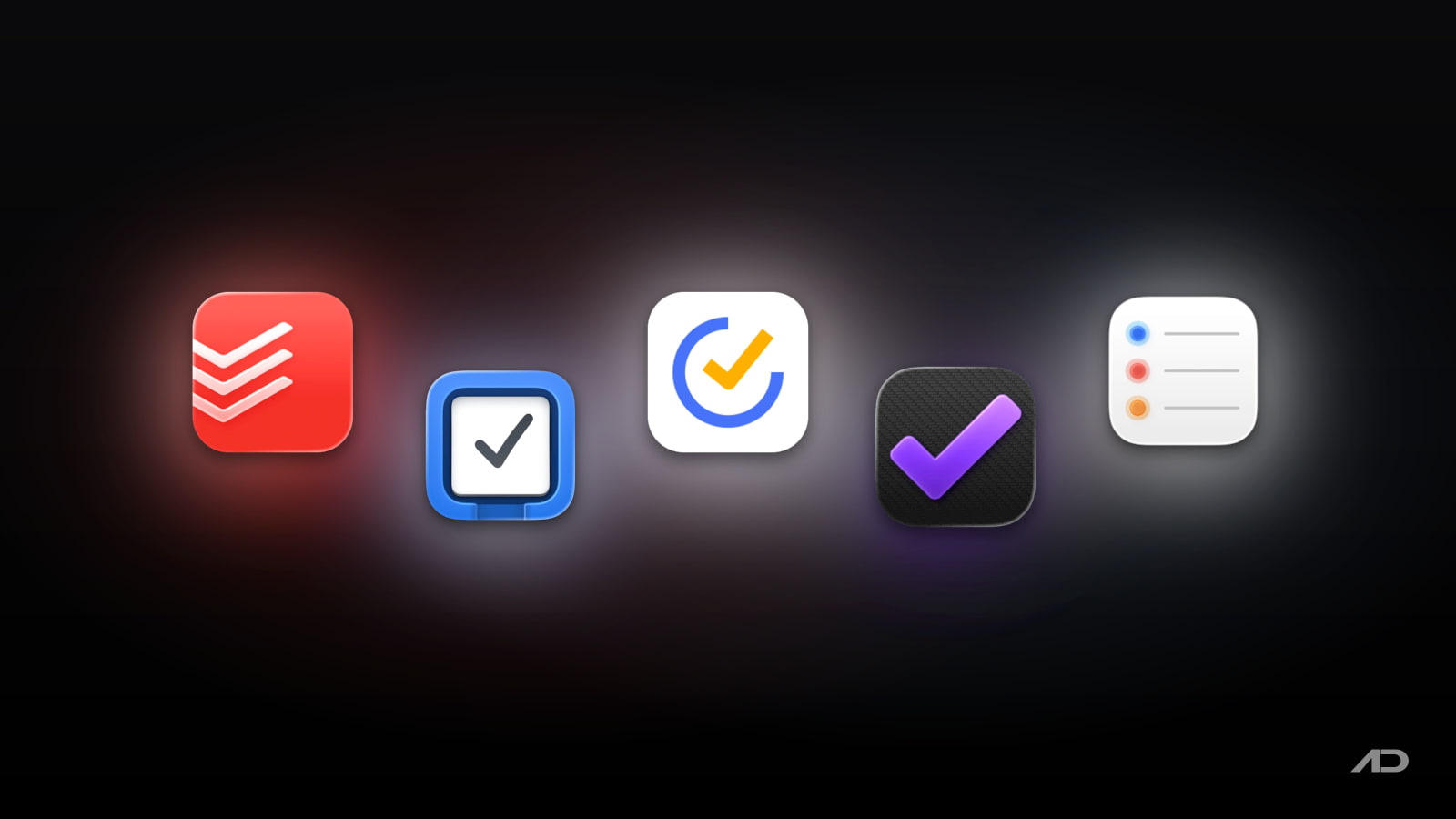
- You already live in a full task manager. If Things 3 or Todoist is always open on a second screen and its Today view already works for you, another app adds little. Our Things 3, Todoist, TickTick and OmniFocus comparison covers those.
- You have one deadline a week. A calendar alert is enough.
ToDoBar works best alongside a main task app, not as a replacement: plan in your big system, and keep today's timed items where you can see them. Our ToDoBar vs Apple Reminders post compares the two in detail.
Worked Examples
A freelance designer with three handoffs
Mia has a logo revision due at 11:00, a social banner set at 2:00 and a quote to send by 5:00. Her morning pass puts all three in ToDoBar with deadlines, reminders set 60, 90 and 20 minutes ahead, and the next task shown in the menu bar. While she works full screen in her design app, the menu bar reads "Logo revision" until she ticks it off, then switches to the banner set. When the 12:30 alert for the banners arrives, she's already started, because the ring showed her the afternoon filling up over lunch.
An operations lead with a hard cutoff
Dev runs payroll changes that must reach the provider by 4:00 pm every other Thursday. The recurring date lives in Calendar, where it repeats automatically. On the day itself, Dev adds the three steps (collect approvals, check totals, submit) to ToDoBar with staggered deadlines, so a slow approval at 1:00 is visible as a problem at 1:00, not at 3:55.
Final Verdict
Keeping track of daily deadlines on a Mac comes down to three habits: separate today's timed tasks from the backlog, remind yourself when to start rather than when it's due, and keep the list where your eyes already are. Reminders and Calendar handle the first two for free and are the right choice if you need sync, sharing or repeats. If your problem is that deadlines vanish behind full-screen work, ToDoBar keeps the next one in your menu bar for a one-time $2.99.
Catch these apps on sale: many paid Mac apps, including productivity apps, run discounts at least once a year, most often around Black Friday. Subscribe to the Apps.Deals newsletter to hear when the deals arrive.
Note: Features and prices are current as of October 2026 and can change; verify them on each official site before buying.
Disclosure: ToDoBar is made by Softal, the same company behind Apps.Deals.
KeyScreen: Show your keystrokes on screen.
Display key presses with custom themes, layouts, multi-display support, and global shortcuts. Made for tutorials, streams, and live demos.