Best Keystroke Visualizer Apps for Mac: KeyScreen vs KeyCastr
If you record tutorials, teach a class or demo software on a call, your viewers can see your cursor but not your keyboard. A keystroke visualizer fixes that: it shows the keys you press in a small overlay, so "press ⌘⇧4" or "hit Tab twice" is visible instead of something viewers have to guess.
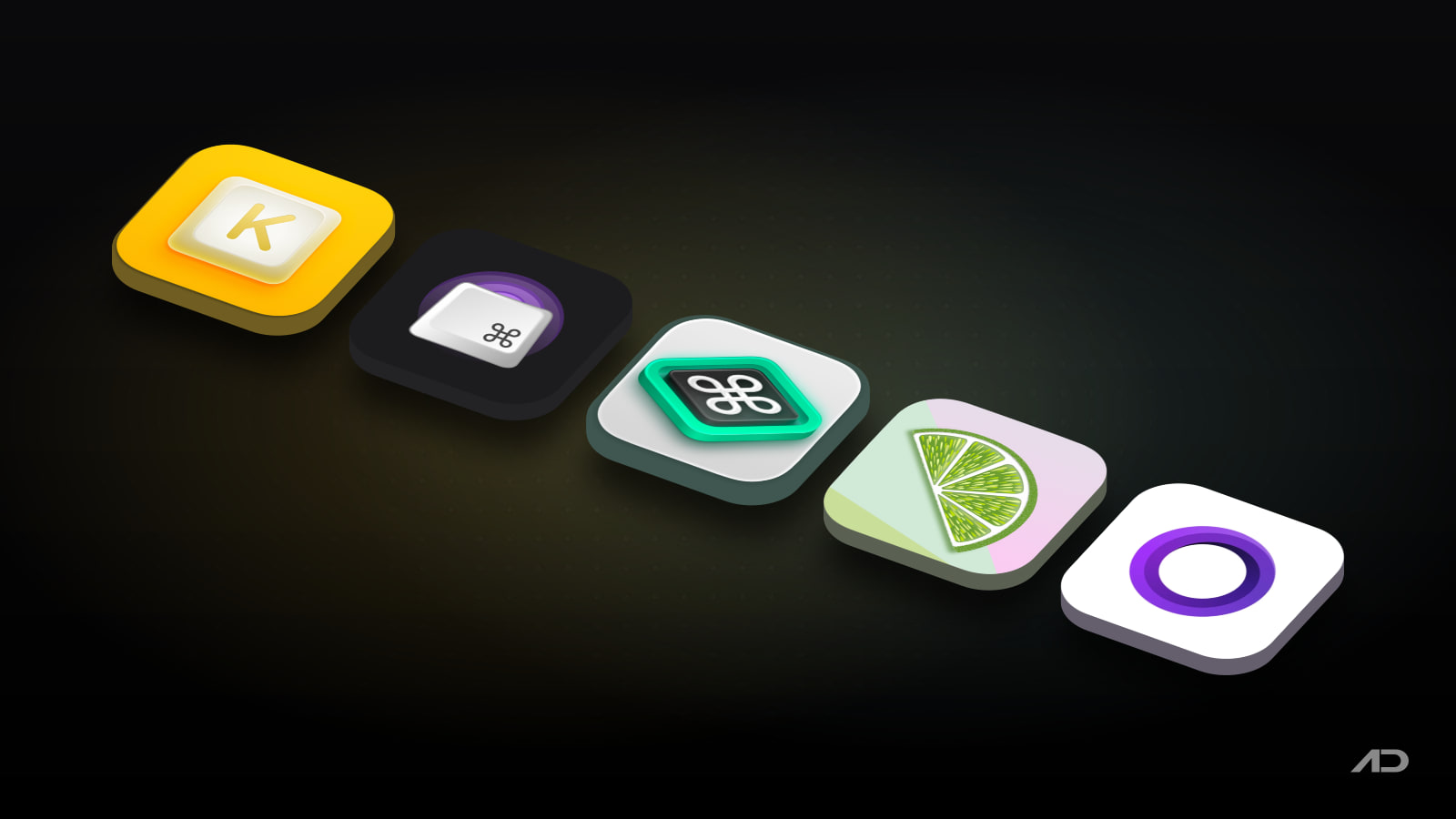
There are a handful of good options on the Mac, from a free open-source classic to polished paid apps. This guide compares KeyScreen, KeyCastr, Keystroke Pro, KeyLimePie and the "Show shortcuts" option in Screen Studio, plus the one tool macOS already includes.
Quick Verdict
Choose KeyScreen if you want a native, customizable overlay for a one-time $5.99: five themes plus custom ones, a choice of which keys to show, left and right mouse clicks, and independent positions on each display. It needs macOS 15 Sequoia or later.
Choose KeyCastr if you want a free, open-source visualizer that has been around for years and is still updated. It shows shortcuts, all keys or mouse clicks, and now has three visual styles.
Choose Keystroke Pro if you're on an older version of macOS (it supports macOS 11.5 and later), want Apple Shortcuts support, or like its animated keycaps enough to pay $14.99.
Choose KeyLimePie if you only want a small, free overlay for keyboard shortcuts, with an optional log of recent shortcuts.
Choose Screen Studio if you only need keys in edited recordings made with Screen Studio, not during live calls or presentations.
Feature Comparison
| Feature | KeyScreen | KeyCastr | Keystroke Pro | KeyLimePie | Screen Studio |
|---|---|---|---|---|---|
| Best for | Customizable overlay for recordings, streams and live demos | Free, open-source visualizer | Animated keycaps, older Macs, Shortcuts automation | Minimal shortcut display | Keys in polished screen recordings |
| Works live (calls, presentations) | Yes | Yes | Yes | Yes | No, recordings only |
| Choose which keys to show | Any mix of modifiers, function keys and special keys, or all keys | Command keys, all modified keys or all keys | Display modes, including modifier keys only | Shortcuts by default, or all keys | Shortcuts in the recording |
| Mouse clicks | Left and right clicks | Optional | Not listed | Not listed | Not applicable |
| Themes and styling | Five themes plus custom themes (fonts, colors, sizes, animations) | Three visualizers (Default, Svelte, Minimal) | Custom key shapes, colors, sizes and animations | Light and dark appearance | Part of the video style |
| Multiple displays | Yes, independent position per display | Drag to position | Yes | Drag to position | Not applicable |
| Toggle shortcut | Custom global shortcuts | Global shortcut | Custom shortcut, Option-click on the menu bar icon | Not listed | Not applicable |
| Password fields hidden | Yes | Yes, when the field is marked secure | Yes | Yes | Not listed |
| macOS requirement | macOS 15 or later | Current macOS supported | macOS 11.5 or later | macOS 10.15 or later | macOS 13.1 or later recommended |
| Price | $5.99 one-time (Mac App Store, US) or direct | Free, open source | $14.99 one-time (Mac App Store, US) | Free | $9/month billed yearly or $29 month to month |
KeyScreen
KeyScreen is a menu bar app built only for showing keystrokes. Its strength is control over what appears. You can show every key, or any combination of modifiers (⌘, ⌥, ⌃, ⇧), function keys and special keys such as Return, Esc, Tab and Delete. That lets a coding tutorial show only shortcuts while a typing lesson shows everything. It also shows left and right mouse clicks.
The look is fully adjustable: five built-in themes, or your own with custom fonts, colors, sizes, shapes, spacing and animations. On a multi-monitor setup, you can place the overlay independently on each display, and KeyScreen remembers those positions when you reconnect a monitor. It works with any keyboard layout (QWERTY, AZERTY, QWERTZ, Arabic and others), runs entirely on your Mac, and never receives keys typed into password fields. Global shortcuts let you hide the overlay mid-recording.
Watch out for: it requires macOS 15 Sequoia or later, so it's not an option on older Macs. It's also the newest app here (released in 2025), though it is regularly updated.
Price: $5.99 one-time on the US Mac App Store, or buy it directly from the website. Prices vary by region.
KeyCastr
KeyCastr is the long-running free choice, and it's still alive: version 0.11 added a new Minimal visualizer in August 2026, followed by 0.11.1 in September. The project has over 15,000 stars on GitHub and a BSD license.
You can display only command-key shortcuts, all modified keys, or every keystroke, with an option to include mouse clicks. Three visualizers change the look: the classic Default, Svelte, and the new Minimal style, which can also show modifier keys pressed on their own. Drag the overlay to move it, and toggle it with a global shortcut. Install it from GitHub or with brew install --cask keycastr.
Watch out for: styling options are basic next to the paid apps, there are no saved themes or per-display positions, and the setup (Input Monitoring permission, a window that can end up offscreen) is a little rougher. Its README covers the common fixes.
Price: free and open source.
Keystroke Pro
Keystroke Pro, from the German studio App ahead, has been on the Mac App Store since 2021 and was last updated in August 2026. It focuses on looks: keycap-style visualizations with custom shapes, colors and sizes, elegant press animations and an adjustable display duration.
It offers display modes such as modifier-keys-only, predefined smart positions, multi-monitor support, launch at login and a custom shortcut, and you can Option-click its menu bar icon to toggle it. It's the only app here with Apple Shortcuts support, which is handy if you want an automation to turn it on when a recording starts. Like the others, it ignores input in secure password fields and keeps everything offline.
Watch out for: it costs more than the rest, there's no free trial on the App Store, and mouse clicks aren't in its feature list. Its broad compatibility (macOS 11.5 and later) is a plus if your Mac can't run macOS 15.
Price: $14.99 one-time on the US Mac App Store. It's also part of an App Store bundle with other screen recording apps.
KeyLimePie
KeyLimePie is a free, 1 MB app from developer Ryan Hanson that does one thing: shows your keyboard shortcuts in a subtle, easy-to-read view. Hold the modifier keys to keep a shortcut on screen longer, drag the view wherever you like, or switch to showing all keystrokes. A log view lists recent shortcuts so viewers can catch up if they blink. It looks right in light and dark mode, collects no data and was last updated in June 2026.
Watch out for: few styling options and no mouse clicks. If you want to match a brand or a stream overlay, one of the apps above fits better.
Price: free, and the developer says there will always be a free version.
Screen Studio
Screen Studio isn't a keystroke visualizer, but it's worth knowing about if all your keystroke needs are in recorded videos. Its "Show shortcuts" option puts the keys you press on screen in the finished video, alongside its automatic zooms and camera layouts, and it places shortcuts where they're easiest to read when you change the video's layout.
Watch out for: it only works on recordings made in Screen Studio, so it does nothing for Zoom calls, live presentations or streams. It's also a subscription.
Price: $9 a month billed yearly, or $29 month to month, with every feature in both plans.
The Built-In macOS Option
macOS has no true keystroke overlay, but Keyboard Viewer comes close for teaching. In System Settings > Keyboard, click Edit next to Input Sources and turn on Show Input menu in menu bar, then choose Show Keyboard Viewer from that menu. A floating on-screen keyboard highlights each key as you press it. It's free and needs no permissions, but it's large, it doesn't keep a key on screen after you release it, and it can't be styled, so it's best for a quick classroom moment rather than a recorded tutorial.
Which One Should You Choose?
- Choose KeyScreen if you make tutorials, streams or live demos on macOS 15 or later and want to control exactly which keys appear and how they look, for a one-time price.
- Choose KeyCastr if you want something free and open source, and the default looks are good enough.
- Choose Keystroke Pro if your Mac runs macOS 11 to 14, you want Apple Shortcuts automation, or you love its animated keycaps.
- Choose KeyLimePie if you only want to show shortcuts, with as little on screen as possible.
- Choose Screen Studio if you already record with it and only need keys in the final video.
For live teaching, a keystroke overlay works best next to a cursor highlight. Presentify highlights your cursor and clicks and lets you draw on screen, and it runs alongside any of the apps above. Our guide to teaching Mac keyboard shortcuts clearly has more on pacing and setup.
Final Verdict
All four dedicated apps do the core job well: they show your keys, stay out of password fields and keep your input on your Mac. KeyScreen is our pick for most people on a current Mac, because it combines the most control over which keys show, themes, per-display positions and mouse clicks at a low one-time price. KeyCastr is the best free choice and is still actively maintained. Keystroke Pro is the most polished option for older macOS versions, and KeyLimePie is a good free pick when all you need is a quiet shortcut display. If you only care about edited videos, Screen Studio's built-in shortcut display may mean you don't need a separate app at all.
Catch these apps on sale: many paid Mac apps, including screen recording and presentation apps, run discounts at least once a year, most often around Black Friday. Subscribe to the Apps.Deals newsletter to hear when the deals arrive.
Features and prices are current as of October 2026 and may vary by region.
Disclosure: KeyScreen and Presentify are made by Softal, the same company behind Apps.Deals. This post also contains affiliate links; if you buy through them, we may earn a commission at no extra cost to you.
KeyScreen: Show your keystrokes on screen.
Display key presses with custom themes, layouts, multi-display support, and global shortcuts. Made for tutorials, streams, and live demos.