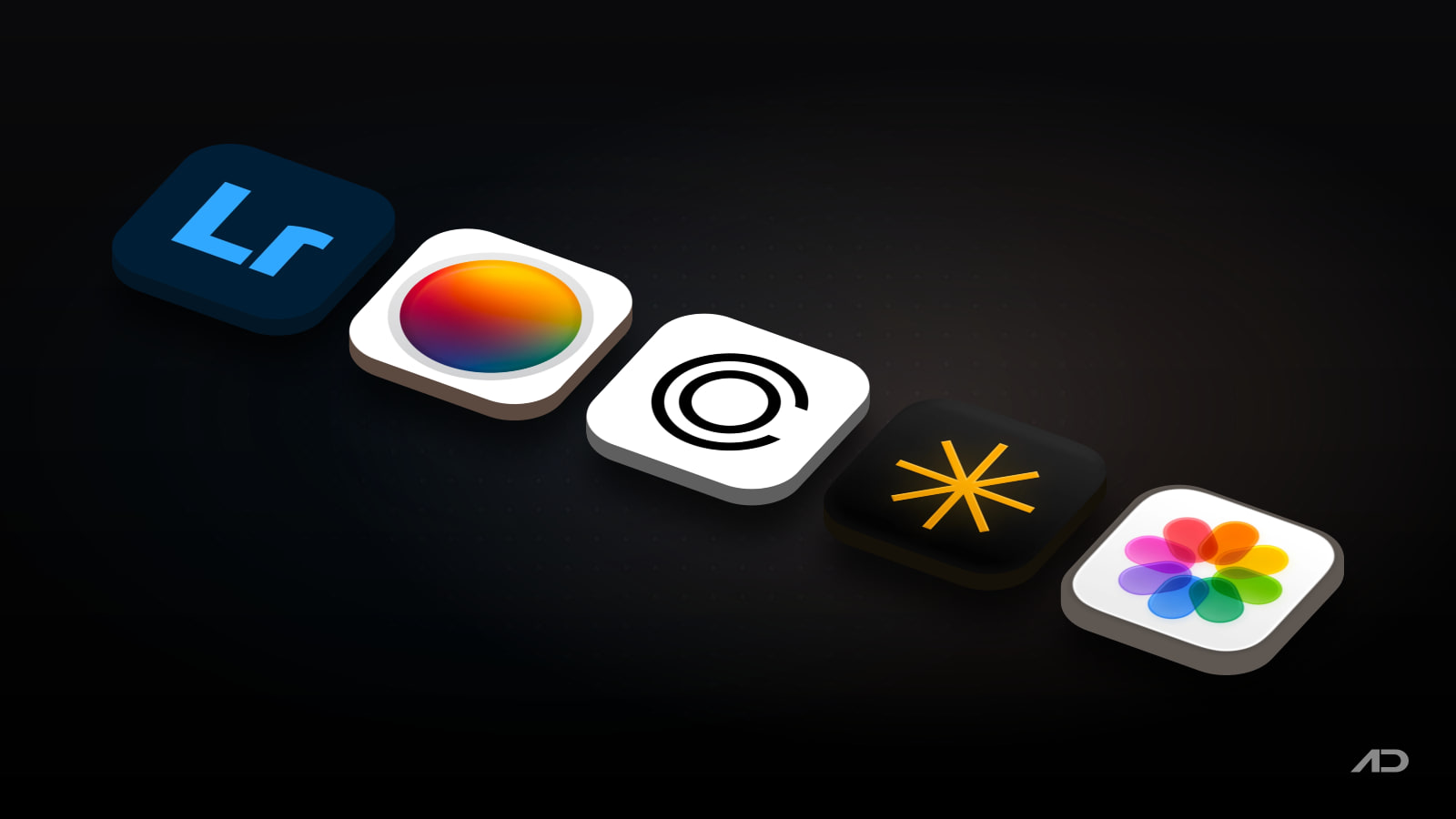
Lightroom Alternatives for Mac: Photomator, Capture One, Luminar Neo, and Apple Photos Compared
Adobe Lightroom remains the default photo workflow app for many Mac users because it combines image organization, RAW editing, presets, masking, cloud sync, Lightroom Classic, mobile apps, and the wider Adobe ecosystem in one subscription.
But Lightroom is not the only serious photo editor on Mac. Photomator is a polished Apple-native editor with strong RAW support, batch editing, AI selections, Photos integration, and a subscription or lifetime license. Capture One is built for photographers who care about color, tethering, sessions, studio work, and deep desktop control. Luminar Neo focuses on approachable AI edits, retouching, sky replacement, generative tools, and one-time license options. Apple's Photos is the free baseline already on every Mac.
This guide compares Lightroom alternatives for Mac across RAW editing, library management, AI tools, masking, batch work, tethering, cloud sync, ecosystem fit, privacy posture, and current pricing.
Quick Verdict
Choose Lightroom if you want the most complete cross-device photo workflow, especially if you already use Lightroom Classic, Photoshop, Adobe cloud storage, presets, generative AI tools, or client-facing Adobe workflows.
Choose Photomator if you want the most Mac-native Lightroom alternative for everyday photo editing. It is especially appealing if you use Apple Photos, iCloud Drive, batch workflows, AI selections, nondestructive color adjustments, and a lifetime license option.
Choose Capture One if color quality, tethered shooting, sessions, studio workflows, precise workspace control, and professional RAW processing matter more than the cheapest plan or the simplest interface.
Choose Luminar Neo if you want fast, visual AI edits without building a complicated catalog. It is strongest for creators who value generative removal, sky replacement, portrait tools, presets, and one-time purchase options.
Use Apple Photos if you mainly organize iPhone photos, make light edits, remove small distractions, adjust exposure and color, share albums, and stay inside Apple's built-in ecosystem.
Feature Comparison
| Feature | Lightroom | Photomator | Capture One | Luminar Neo | Apple Photos |
|---|---|---|---|---|---|
| Best for | Complete Adobe photo workflow across Mac, mobile, web, Lightroom Classic, and Photoshop | Mac-native RAW editing, Photos integration, batch edits, and lifetime-license buyers | Professional color, tethering, sessions, studio workflows, and deep desktop control | AI-first photo enhancement, creative edits, portraits, skies, and quick visual results | Personal libraries, iPhone photos, light editing, iCloud Photos, and free built-in organization |
| Main workflow | Import, organize, edit, sync, export, share, and optionally round-trip to Photoshop | Edit through Photos, Files, iCloud Drive, or external drives with native Mac performance | Session or catalog-based desktop workflow with advanced RAW processing and tethering | Open photos, apply AI tools, presets, creative edits, retouching, and export | Browse, search, organize, edit, share, and sync through iCloud Photos |
| RAW editing | Strong RAW editing with Lightroom and Lightroom Classic, presets, masking, HDR, denoise, and profiles | Supports 750+ RAW formats, Apple ProRAW, nondestructive adjustments, repair, denoise, LUTs, and batch editing | Professional RAW conversion, custom camera profiles, 550+ supported cameras, color tools, and advanced desktop editing | RAW editor with AI tools, object removal, generative tools, portrait edits, landscapes, and presets | Can edit RAW files supported by macOS, but not a pro RAW workflow manager |
| Library management | Strongest full photo-management system here, especially with Lightroom Classic catalogs and cloud libraries | Good file and Photos-library browsing, filtering, flags, ratings, and batch workflows | Strong sessions, catalogs, smart albums, filters, and professional file management | Less library-centric; better as an editor than as a serious archive manager | Excellent personal library, people, places, albums, smart albums, duplicates, memories, and search |
| AI and automation | Generative Remove, masking, denoise, Lens Blur, assisted culling, presets, Firefly credits, and Adobe AI features | AI subject, sky, and background selections; ML Enhance; Super Resolution; Denoise; Smart Deband; Match Colors; batch workflows | Assisted masking, Match Look, AI Crop, skin tone tools, background replacement integrations, and workflow automation | GenErase, GenExpand, GenSwap, Sky AI, Atmosphere AI, Skin AI, Face AI, Body AI, Studio Light, and Bokeh AI | Clean Up, auto enhance, Photographic Styles where supported, memories, search, duplicate detection, and system intelligence |
| Masking and local edits | Excellent masking across subject, sky, object, brush, gradients, people, and AI-assisted selections | Strong local edits with AI selections, gradient masks, color range selection, and brush masking | Precise layers, masking, assisted masking, color editor, skin tone tools, and workspace control | Good AI-driven local changes, especially portraits, skies, object removal, and creative enhancements | Basic adjustments and retouching compared with dedicated editors |
| Batch work | Strong in Lightroom Classic and solid in Lightroom through presets, sync, export, and culling workflows | Strong batch editing, copy/paste edits, workflows, watermarks, file filtering, and external-drive support | Strong for professional workflows, sessions, tethering, next-capture adjustments, exports, and studio pipelines | Useful presets and repeated AI edits, but less catalog-driven than Lightroom or Capture One | Basic copy adjustments and library organization, not high-volume production |
| Tethering | Lightroom Classic supports tethered capture for supported cameras | No serious tethered studio workflow | Best option here for tethered shooting, Live View, Snap to Eye, and next-capture adjustments | Not a tethering-first app | No tethered capture workflow |
| Cloud and devices | Lightroom for Mac, mobile, web, Lightroom Classic, Adobe cloud storage, and Photoshop integration | Mac, iPhone, iPad, and Vision Pro; iCloud Drive and Photos sync; App Store licensing | Desktop-first with mobile apps in higher bundles and online collaboration in some plans | Mac and Windows desktop, with mobile depending on plan; cloud features are not the main reason to choose it | Mac, iPhone, iPad, Apple TV, iCloud Photos, shared albums, and iCloud.com |
| Current pricing snapshot | Lightroom plan currently starts at $11.99/month annually billed monthly or $119.88/year; Photography plan with Photoshop is $19.99/month annually billed monthly | Free download with 7-day trial; App Store lists $7.99/month, $29.99/year, and $119.99 lifetime in-app purchases in the US | Official site lists Pro subscriptions plus a Pro perpetual license; current US pricing can be region-rendered at checkout, with recent public pricing around $18/month annually and $349 perpetual after the 2026 increase | Free download on the Mac App Store with in-app purchases; App Store lists Pro at $12.99/month or $99.99/year, and one-time purchase options around $99.99-$149.99; Skylum's direct store also runs changing perpetual offers | Included with macOS; paid iCloud storage may be needed for large libraries |
Lightroom
Lightroom is still the broadest option in this comparison. It is not only a Mac photo editor. It is a photo system that spans desktop, mobile, web, cloud storage, Lightroom Classic, Photoshop, Adobe presets, generative AI tools, and long-established professional workflows.
That breadth is useful when photos move between devices. You can shoot on an iPhone, import on a Mac, edit on an iPad, sync collections, export for clients, and round-trip more complex work to Photoshop. Lightroom Classic remains especially important for photographers who prefer a local catalog, folders, plugins, print workflows, and mature desktop organization.
Lightroom's editing tools are also strong. Adobe's current documentation and product pages list masking, presets, crop and geometry tools, Generative Remove, denoise, Lens Blur, HDR and panorama merges, reflection removal, assisted culling, Content Credentials, and video-related features in the Lightroom ecosystem. For many photographers, the value is not one single feature but the combination of RAW editing, organization, sync, and Adobe continuity.
The tradeoff is the subscription. Lightroom is currently available as a standalone plan at $11.99/month on an annual billed-monthly plan or $119.88/year, with 1TB of cloud storage. The Photography plan currently costs $19.99/month annually billed monthly and includes Lightroom, Lightroom Classic, and Photoshop. Those plans make sense if Adobe is central to your creative work. They feel heavier if you only want to edit personal photos or avoid another recurring payment.
Lightroom is the safest pick if you want the strongest overall ecosystem, but not automatically the best value for every Mac user.
Choose Lightroom if sync, Classic, Photoshop, cloud libraries, and Adobe's long-term photo workflow outweigh subscription fatigue.
Photomator
Photomator is the best Lightroom alternative for many Apple-first users. It feels native on Mac, works across Mac, iPhone, iPad, and Vision Pro, and is built around fast photo editing rather than a heavy professional studio environment.
The current App Store listing describes nondestructive color adjustments, AI subject, sky, and background selections, gradient masks, color range selections, brush masking, Clone and Repair tools, batch editing, presets, LUTs, watermarks, RAW support for more than 750 formats, Apple ProRAW support, Denoise, Super Resolution, Smart Deband, Match Colors, and iCloud Drive sync. Apple's support page also says Photomator is the better Pixelmator-family app for fast photo-editing workflows and batch editing, while Pixelmator Pro is better for design and layered graphics.
That makes Photomator especially good for Mac users who want something lighter and more native than Lightroom. It can browse Photos, Files, iCloud Drive, and external drives, so it works for people who do not want to migrate every image into a new catalog. It also has practical tools for ratings, flags, filtering, copy/paste edits, and batch workflows.
The tradeoff is ecosystem depth. Photomator is not Lightroom Classic, and it does not replace Photoshop, Adobe cloud review workflows, Lightroom's broad preset ecosystem, or Capture One's studio tethering. It is a better fit for photographers, creators, students, and small teams who want a clean Mac workflow, not a full Adobe replacement in every professional edge case.
Photomator is free to download from the App Store with a full-featured seven-day trial. The US App Store currently lists $7.99/month, $29.99/year, and $119.99 lifetime in-app purchases, with occasional App Store regional or promotional variations.
Choose Photomator if you want a modern, Mac-native, reasonably priced Lightroom alternative with strong RAW edits, AI selections, Photos integration, and a lifetime option.
Capture One
Capture One is the professional specialist. It is the most compelling Lightroom alternative here for photographers who care about color, tethered shooting, sessions, workspace customization, and desktop production workflows.
The current Capture One Pro page emphasizes RAW processing with custom camera profiles, precise highlight and shadow control, hue/saturation/luminance color tools, fast tethering, Live View, Snap to Eye, next-capture adjustments, custom workspaces, shortcuts, assisted masking, Match Look, skin tone tools, and file management. The current pricing page also lists Pro, All in One, Studio, Mobile, and a Pro perpetual license, with the higher tiers adding mobile, collaboration, priority support, and studio production features.
This focus matters for studio, portrait, commercial, product, fashion, and event photographers. Tethering is not a checkbox for those users. It affects how clients review shots on set, how assistants manage selects, how edits are applied as images arrive, and how reliable the whole shoot feels under pressure.
Capture One is less obvious for casual photographers. The interface, pricing, and workflow assumptions are more professional than Photomator or Apple Photos. It also does not have Adobe's same cross-app ecosystem or Photoshop bundle. If your work is mostly travel photos, family albums, or quick social edits, Capture One may be more machine than you need.
Capture One's official pages list subscription and perpetual options, but prices can be region-rendered at checkout. During this check, recent public US pricing after the 2026 increase was around $18/month on an annual Pro subscription and $349 for a Pro perpetual license, with monthly and higher-tier plans priced separately. Treat those as a snapshot and verify the localized checkout before buying.
Choose Capture One if tethering, color accuracy, sessions, studio reliability, and professional RAW control are more important than low cost or simplicity.
Luminar Neo
Luminar Neo is the creative AI option. It is not trying to be the deepest catalog manager or the most traditional studio tethering tool. It is trying to help users get a finished-looking edit quickly.
The current Mac App Store listing describes RAW editing, GenErase, GenExpand, GenSwap, object removal, background erasing, Sky AI, Atmosphere AI, Sunrays, Twilight Enhancer AI, Water Enhancer AI, Skin AI, Face AI, Body AI, Studio Light, and Bokeh AI. That gives Luminar Neo a clear lane: it is approachable, visual, and strong for edits that would be slow or intimidating in a traditional editor.
That makes it useful for creators, marketers, bloggers, hobby photographers, real-estate edits, social images, portraits, landscapes, and people who want the result more than the process. If your photo needs a cleaner background, a replaced sky, an expanded frame, smoother skin, better lighting, or a more dramatic preset, Luminar Neo can feel more direct than Lightroom.
The tradeoff is workflow depth. Luminar Neo is less compelling as a serious long-term photo archive, production catalog, or tethered studio environment. Its AI tools are the attraction, but they can also encourage heavier edits than some photographers want. If your priority is subtle color consistency across thousands of RAW files, Lightroom, Photomator, or Capture One may fit better.
Luminar Neo is free to download from the Mac App Store with in-app purchases. The US App Store currently lists Pro at $12.99/month or $99.99/year, plus one-time purchase options around $99.99-$149.99 depending on the offer. Skylum's direct store also runs changing perpetual bundles, so compare the current App Store and direct prices before buying.
Choose Luminar Neo if you want fast AI-assisted edits, creative transformations, and one-time license options more than a traditional photo-management system.
Apple Photos
Apple Photos is the option many people should test before paying for anything else. It is already installed, tightly integrated with iCloud Photos, and excellent for personal libraries.
Apple's current support guides cover albums, smart albums, search, people and pets, locations, captions, keywords, duplicates, media-type filtering, Live Text, Visual Look Up, subject isolation, shared albums, memories, and basic editing. In the editor, Photos can crop, straighten, apply filters, adjust light, exposure, color, white balance, curves, levels, definition, noise, sharpness, vignette, red-eye, and remove distractions or imperfections where supported.
That is enough for a large group of Mac users. If your photos mostly come from iPhone, you want family sharing and iCloud, and you only make light corrections before sharing, Photos is the cleanest option. It also keeps your photo library in the system place where other Apple apps expect to find it.
The limitations are clear. Photos is not a Lightroom replacement for serious RAW workflows, tethered shooting, advanced culling, professional export presets, layered retouching, client proofing, studio sessions, third-party preset ecosystems, or deep batch production. It can make a good photo better, but it is not meant to run a commercial photo workflow.
Apple Photos is included with macOS. iCloud storage is the main related cost if your library is large enough to exceed the free iCloud tier.
Choose Apple Photos if your needs are personal, Apple-centric, and light enough that a dedicated photo editor would add friction.
Which Lightroom Alternative Should You Use?
Use Photomator if you want the most balanced Mac-native alternative. It is the best first stop for people leaving Lightroom because of price, subscription fatigue, or an Apple-first workflow.
Use Capture One if your photos are professional work and tethering, color, sessions, studio reliability, and precise desktop control matter. It is not the simplest choice, but it is the strongest specialist.
Use Luminar Neo if you want quick creative edits with strong AI tools. It is better for visual transformations than for disciplined catalog management.
Use Apple Photos if your needs are personal and your library already lives in iCloud. It is free, integrated, and better than many people remember.
Stick with Lightroom if you use Lightroom Classic, Photoshop, cloud sync, presets, Adobe AI features, mobile editing, and web sharing. Leaving Lightroom only makes sense if the replacement matches the part of the workflow you actually depend on.
The practical way to decide is to identify the real reason you are looking around. If the problem is price, try Photomator. If the problem is studio work, try Capture One. If the problem is editing speed and creativity, try Luminar Neo. If the problem is that you barely edit photos at all, use Apple Photos.
Final Verdict
Lightroom is still the best complete photo ecosystem. It is hard to beat when Lightroom Classic, Photoshop, cloud libraries, mobile editing, presets, AI tools, and Adobe's mature workflow all matter.
Photomator is the best Lightroom alternative for most Mac users. It is native, fast, powerful enough for serious everyday editing, and easier to justify if you want a lower annual price or a lifetime license.
Capture One is the best professional studio alternative. Its color tools, RAW processing, tethering, sessions, and workspace control make it the strongest option for photographers who shoot for clients.
Luminar Neo is the best AI-first creative alternative. It is ideal when you want quick results, visual enhancement, portraits, skies, object removal, generative edits, and one-time purchase options.
Apple Photos is the best free fallback. It is already on every Mac and is perfectly reasonable for personal libraries, iCloud Photos, and light edits.
My practical recommendation: start with Apple Photos if your needs are light, choose Photomator if you want the cleanest Mac-native Lightroom alternative, choose Capture One for professional tethering and color workflows, choose Luminar Neo for AI-heavy creative edits, and stay with Lightroom when Adobe sync, Classic, Photoshop, and presets are central to the way you work.
Note: Features and prices are current as of July 2026. Regional pricing, taxes, trials, subscription terms, perpetual-license rules, App Store in-app purchases, direct-store promotions, AI credit limits, camera support, cloud storage, and macOS requirements can change. Verify current details on each developer's official product, pricing, support, or App Store page before purchasing.

KeyScreen: Show your keystrokes on screen.
Display key presses with custom themes, layouts, multi-display support, and global shortcuts. Made for tutorials, streams, and live demos.