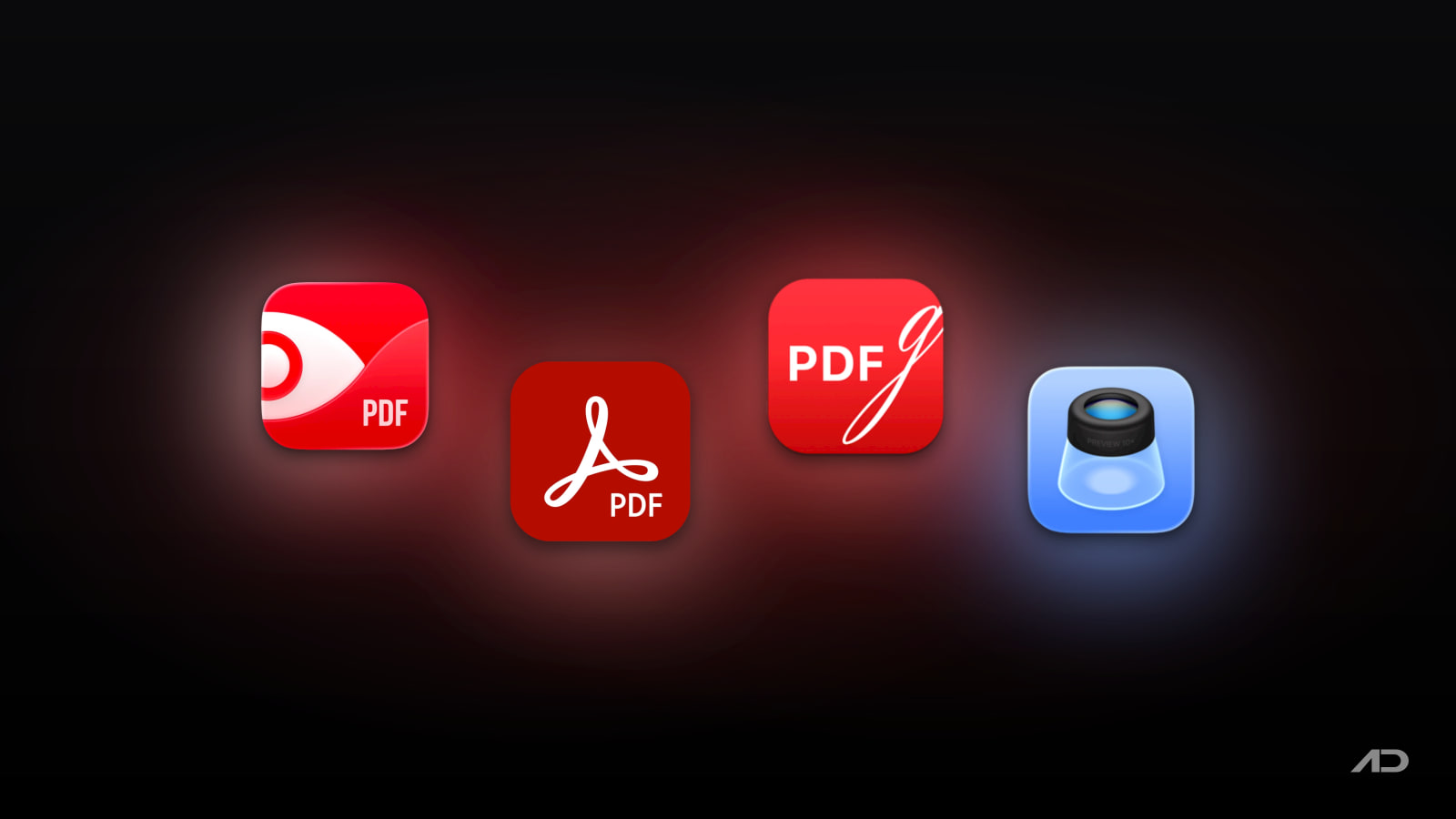
PDF Expert vs Adobe Acrobat, PDFgear, and Preview for Mac
Working with PDFs on a Mac still pushes many people beyond Apple's built-in tools. PDF Expert remains one of the best-known Mac-native names for reading, editing, annotating, and signing PDFs. Adobe Acrobat is still the standard enterprise reference point. PDFgear has become popular by offering a surprisingly broad feature set for free. And Preview is already on every Mac and is better than many people remember.
This comparison looks at all four from a Mac-user perspective: editing, OCR, forms, signing, page management, AI features, and pricing.
Quick Verdict
Choose PDF Expert if you want the best balance of Mac-native design, strong editing tools, OCR, conversion, and a price that is easier to justify than Acrobat for most individuals.
Choose Adobe Acrobat if you work in teams or regulated environments where Adobe's format compatibility, enterprise familiarity, web tools, and broader workflow depth matter more than cost.
Choose PDFgear if you want the widest feature list possible without paying, especially for occasional PDF editing, OCR, conversion, and AI-assisted tasks.
Choose Preview if your needs are mostly reading, highlighting, combining files, filling forms, signing documents, and basic protection without installing anything else.
Feature Comparison
| Feature | PDF Expert | Adobe Acrobat | PDFgear | Preview |
|---|---|---|---|---|
| Best for | Mac users who want a polished premium PDF editor | Businesses and heavy document workflows | Cost-conscious users who still want a wide feature set | Built-in PDF reading, markup, forms, and basic file management |
| Mac app | Yes | Yes | Yes | Yes, built into macOS |
| Edit PDF text and images | Yes | Yes | Yes | No true full text editing comparable to the others |
| OCR for scanned PDFs | Yes | Yes | Yes | No built-in OCR workflow comparable to the others |
| Annotate and comment | Yes | Yes | Yes | Yes |
| Fill and sign forms | Yes | Yes | Yes | Yes |
| Merge / split / organize pages | Yes | Yes | Yes | Yes, including combining PDFs and rearranging pages |
| Convert PDF to Word / Excel / PPT | Yes | Yes | Yes | No |
| AI PDF features | Yes, including PDF Copilot and PDF translation on current premium plans | Yes, with Acrobat AI Assistant available as an add-on | Yes, positioned around AI PDF chat and assistance | No dedicated AI PDF feature set |
| Pricing snapshot | Premium currently listed at $79.99/year or $139.99 lifetime for Mac; weekly plan also available | Acrobat Pro currently listed at $19.99/month billed annually, $239.88/year prepaid, or $29.99/month month-to-month; AI Assistant extra | Currently free on Mac according to PDFgear's product and user guide pages | Included with macOS |
PDF Expert
PDF Expert is still one of the most Mac-friendly answers to "I need more than Preview." Readdle positions it as an all-purpose PDF editor for Mac, iPhone, and iPad, and its current feature pages highlight direct PDF text editing, image editing, OCR, conversion, signatures, annotations, page organization, and translation.
Its biggest advantage is that it feels like a Mac app first and a document tool second. That matters if you spend a lot of time reading contracts, revising client documents, marking up drafts, or combining files, but do not want Adobe's heavier enterprise feel. PDF Expert is also now leaning harder into AI with PDF Copilot and PDF translation included in its current premium positioning.
Pricing is clearer than Acrobat's. PDF Expert's current pricing page lists $79.99/year for the annual premium plan and $139.99 for a lifetime Mac plan, while the Mac App Store listing also shows premium and lifetime purchase options. That will still feel expensive if you only edit a few PDFs each month, but it is more approachable than a long-term Acrobat subscription.
Choose PDF Expert if you want the most polished premium experience for solo or small-team Mac work without stepping all the way into Adobe's ecosystem.
Adobe Acrobat
Adobe Acrobat is still the reference point for serious PDF work. Adobe's official feature pages continue to emphasize direct text and image editing, OCR for scanned documents, file conversion, annotation, forms, protection, e-sign workflows, and broad cross-device support. In practice, Acrobat is usually the safest choice when your documents need to move through mixed Windows, Mac, browser, and enterprise environments without surprises.
Where Acrobat still stands out is breadth. Adobe is not just selling a Mac editor. It is selling a document platform with mature standards support, familiar workflows for many businesses, and deeper surrounding services. If you regularly exchange forms, approvals, locked files, or compliance-heavy PDFs with clients and large organizations, Acrobat's ubiquity still matters.
The tradeoff is cost. Adobe's current pricing page lists Acrobat Pro at $19.99/month billed annually, $239.88/year prepaid, or $29.99/month with no annual commitment. Adobe also lists AI Assistant as a separate add-on starting at $4.99/month on annual plans. For many individual Mac users, that is a meaningful premium over PDF Expert and far above Preview or PDFgear.
Choose Acrobat if document work is business-critical enough that standardization, compatibility, and workflow depth matter more than keeping the tool lean or affordable.
PDFgear
PDFgear has become one of the more interesting PDF apps on Mac because its current official materials still position it as completely free, with no ads, no required sign-up, and no watermarking on exports. That alone makes it commercially relevant, because it overlaps with a surprisingly large chunk of what paid Mac PDF apps sell.
Its current Mac product page and user guide claim a long list of features: PDF text editing, annotation, OCR, conversion, page organization, compression, signatures, redaction, form filling, and AI-assisted chat or summarization. That means PDFgear is no longer just a "good enough" fallback. For many light and medium-duty users, it covers most of the real checklist.
The obvious question is sustainability. PDFgear's about page says it is planning advanced features with some shifting to paid options in 2025, so I would not assume the current pricing model lasts forever. But as of this run, the Mac app is still publicly positioned as free.
Choose PDFgear if you want maximum value, do not mind trusting a newer player than Adobe or Readdle, and want more power than Preview without paying upfront.
Preview
Preview is the quiet baseline in this category. Apple's current Preview documentation confirms that it can view and manage PDFs and images, annotate PDFs, fill out and sign PDF forms, combine PDFs, add or rearrange pages, export files, reduce file size, and password-protect PDFs. For many Mac users, those are the exact tasks they actually perform most often.
Preview's biggest strength is convenience. It is already installed, it opens quickly, and it handles reading, markup, signatures, and basic page management with very little friction. If your PDF needs are mostly forms, highlighting, simple edits around pages, or merging a few files, Preview is still the most underrated option here.
Its limit is also obvious. Preview is not a full PDF editor in the same sense as PDF Expert, Acrobat, or PDFgear. It does not offer the same kind of direct text editing, conversion suite, OCR workflow, or AI tools. That means many professional document workflows still outgrow it.
Choose Preview if your PDF work is straightforward and you would rather keep things simple than add another paid or third-party app.
Which One Should You Use?
Use PDF Expert if you want the best mix of Mac polish, solid editing depth, OCR, and simpler pricing than Acrobat.
Use Adobe Acrobat if you need the most standardized business workflow and are comfortable paying for it.
Use PDFgear if your priority is getting advanced PDF tools for free and you are fine with a less established brand.
Use Preview if your real needs stop at reading, markup, signatures, forms, and basic file handling.
Final Verdict
For most Mac users, this category is simpler than it first appears.
If you want a serious paid PDF editor for Mac, the practical decision is usually PDF Expert vs Adobe Acrobat. PDF Expert is easier to recommend for individuals because it feels more Mac-native and costs less over time. Acrobat still wins when broader business workflows and format compatibility are non-negotiable.
If you want a free option, the real choice is PDFgear vs Preview. PDFgear wins on features. Preview wins on trust, simplicity, and zero setup.
My practical recommendation:
- Start with Preview if your PDF tasks are basic.
- Step up to PDFgear if you want more capability without paying.
- Buy PDF Expert if you want the best premium Mac-focused experience.
- Choose Adobe Acrobat only when your work genuinely needs its broader business workflow.
Note: Features and prices are current as of June 2026. Always verify the latest details on the official websites, public pricing pages, Mac App Store pages, or support documentation before buying or subscribing.
KeyScreen: Show your keystrokes on screen.
Display key presses with custom themes, layouts, multi-display support, and global shortcuts. Made for tutorials, streams, and live demos.