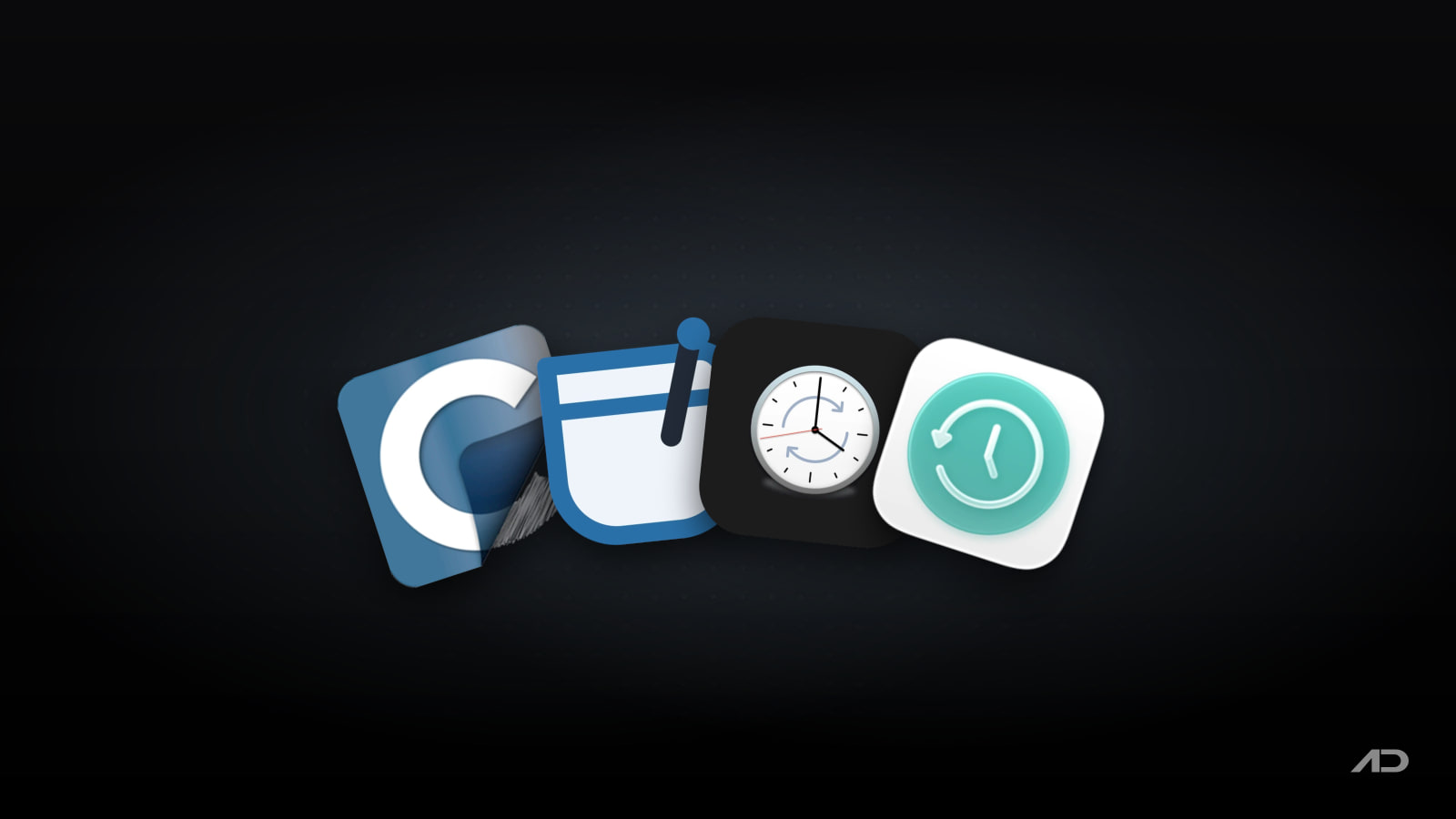
Carbon Copy Cloner vs SuperDuper, ChronoSync, and Time Machine for Mac
Carbon Copy Cloner is one of the best-known Mac backup utilities. It can copy a complete data volume, protect selected folders, create snapshots, verify files, schedule tasks, and build backups that remain directly accessible in Finder.
It is not the only established option. SuperDuper! keeps cloning unusually simple. ChronoSync combines backup, archiving, file synchronization, network workflows, and detailed automation. Apple's Time Machine provides automatic versioned backups at no extra software cost.
This comparison looks at all four from a Mac-user perspective: backup types, version history, scheduling, verification, bootable-copy support, network and cloud destinations, pricing, and how much setup each approach requires.
Quick Verdict
Choose Carbon Copy Cloner if you want the best balance of precise backup control, APFS snapshots, verification, flexible scheduling, recovery tools, and an approachable interface.
Choose SuperDuper! if your priority is making and updating a straightforward copy of a Mac drive with minimal complexity and a lower one-time price.
Choose ChronoSync if you need advanced synchronization, remote or cloud destinations, detailed filters, archiving, validation, event triggers, or multi-Mac workflows.
Choose Time Machine if you want the simplest automatic version history, deep macOS integration, and no additional app purchase.
Feature Comparison
| Feature | Carbon Copy Cloner | SuperDuper! | ChronoSync | Time Machine |
|---|---|---|---|---|
| Best for | Flexible local backups with snapshots, auditing, and recovery controls | Simple full-drive copies and fast Smart Updates | Advanced backup, sync, archiving, network, and cloud workflows | Automatic versioned backups with minimal setup |
| Backup scope | Whole data volume, selected folders, or custom filtered tasks | Full drives, selected copy scripts, disk images, and custom scripts | Files, folders, volumes, bootable backups, sync pairs, remote systems, and cloud services | Apps, documents, photos, mail, settings, and other Mac data |
| Version history | APFS snapshots with browsing and filename search | APFS snapshot support | Archived deleted or changed files with retention controls | Hourly, daily, and weekly history until the disk fills |
| Scheduling | Hourly to monthly, change detection, disk events, network conditions, and task chaining | Scheduling, Backup on Connect, and Smart Wake in the paid version | Detailed time schedules, missed-task recovery, disk or server events, and change monitoring | Automatic schedule with frequency options in current macOS |
| Verification | Post-copy verification, health checks, checksum comparison, and task audits | Copy logs and snapshot-based recovery; less verification depth | Byte-for-byte validation of content and metadata | macOS manages backup integrity; fewer user-facing validation controls |
| File synchronization | One-way backup and copying focus | One-way copying and cloning focus | One-way and bidirectional synchronization | No general-purpose folder sync |
| Network or cloud workflows | Supports local and network destinations; can download cloud-only files before backup | Primarily local volumes and disk images | Local, network, remote Mac, iCloud, Dropbox, Amazon, Backblaze, and other targets | External drives and supported network backup disks |
| Trial or free use | Fully functional 30-day trial | Basic backup and cloning remain free; paid features require registration | Fully functional 15-day trial | Included with macOS |
| Current price | $49.99 one-time household license | $27.95 one-time | $49.99 one-time per Mac, with free updates for life | Free with macOS; storage hardware is separate |
Backups and Sync Are Different
A backup preserves another copy of data so you can recover after deletion, corruption, hardware failure, theft, or a bad software update. Synchronization keeps two locations aligned. That is useful for moving current work between devices, but a deletion can also synchronize to the other side.
Version history helps close that gap by retaining earlier states. Time Machine does this automatically. Carbon Copy Cloner and SuperDuper can use APFS snapshots. ChronoSync can archive modified and deleted files according to retention rules.
No single external drive is a complete disaster-recovery strategy. A strong setup follows the spirit of the 3-2-1 rule: keep three copies of important data, on two types of storage, with one copy in another location. Any app here can be part of that plan, but the destination hardware and off-site copy still matter.
Carbon Copy Cloner
Carbon Copy Cloner 7 is the strongest all-round paid option. It can back up an entire Mac data volume, copy a selected folder, migrate an external disk, or apply custom rules that show exactly what will and will not be copied.
Its Smart Copy engine transfers added and changed files instead of repeating unnecessary work. Tasks can run hourly, daily, weekly, monthly, when changes are detected, or under conditions such as a particular Wi-Fi network, Ethernet availability, or a connected destination. Advanced workflows can mount and unmount disks, run shell scripts, and chain tasks.
APFS snapshot support gives CCC version history without storing every backup as a separate full copy. Its Snapshot Browser can restore older files and search snapshot history by filename. CCC can also temporarily download cloud-only files from services such as iCloud, Dropbox, Google Drive, OneDrive, and Box so those files are included in a local backup.
Verification is a major advantage. CCC can verify newly copied files, run automated Backup Health Checks, compare source files against a known state with checksums, and retain task audits that explain what changed. It also supports encrypted backup volumes and can leave destinations unmounted between tasks.
Modern macOS limits what third-party tools can promise about immediately bootable system clones, especially on Apple silicon. CCC focuses on reliable data-volume backups and recovery, while its documentation explains the conditions and limitations around legacy bootable copies. For most users, a recoverable data backup plus macOS Recovery is the more realistic plan.
Carbon Copy Cloner 7 requires macOS 13 Ventura or later. A $49.99 personal and household license covers all Macs in one household for non-commercial use, and a fully functional 30-day trial is available.
Choose CCC if you want serious backup controls without moving all the way into ChronoSync's broader synchronization toolkit.
SuperDuper!
SuperDuper! has long been popular because its basic workflow is easy to understand: choose a source, choose a destination, select a copy script, and run the task.
The free version can make full backups and clones. Paying unlocks Smart Update, which updates an existing destination with only the changes required to match the source. Registration also adds scheduling, Sandboxes, scripting, and other advanced controls.
SuperDuper supports APFS snapshots, disk images, Backup on Connect, ejecting a destination after copying, Smart Wake, Smart Delete, and custom copy scripts. It can also place a backup alongside a Time Machine volume, making it a practical companion rather than necessarily a replacement.
Its strength is focus. The interface confirms what a copy task will do in plain language, and common jobs are preconfigured. Carbon Copy Cloner provides deeper verification and task-auditing tools, while ChronoSync is much stronger for bidirectional sync, remote destinations, and complex rule systems.
SuperDuper 3.12 supports macOS 10.13 or later and both APFS and HFS+ volumes. The vendor says it supports current macOS Tahoe, with additional Tahoe improvements offered through its 3.20 beta. Bootable-copy behavior varies by Mac hardware and macOS version, so check the vendor's current instructions before treating a clone as a startup plan.
Basic backup and cloning can be used free indefinitely. A license costs $27.95 once and unlocks Smart Update, scheduling, Sandboxes, scripting, and more.
Choose SuperDuper if you want a clear local-copy tool and do not need CCC's verification depth or ChronoSync's extensive synchronization features.
ChronoSync
ChronoSync is the broadest tool in this comparison. It performs incremental backups, one-way and bidirectional synchronization, archiving, bootable-backup workflows, network tasks, cloud transfers, and remote Mac backups.
The app is especially useful when two active folders must stay aligned. A trial synchronization shows proposed operations before anything changes, including estimated storage requirements. Conflict detection, metadata handling, filtering rules, and saved templates provide control over complicated sync jobs.
Scheduling goes well beyond a basic daily timer. Tasks can run at detailed intervals, wake a Mac, catch up after a missed schedule, start when a disk or file server appears, or monitor for changes. ChronoAgent, sold separately, extends remote Mac-to-Mac performance and control.
ChronoSync can retain changed and deleted files in an archive, with limits based on version count, age, or both. Its Validator performs byte-for-byte comparisons of file contents and metadata. Logs, email alerts, system notifications, and optional ChronoMonitor push notifications make it suitable for professional setups where a silent failure is unacceptable.
The tradeoff is complexity. A photographer synchronizing several working drives or an administrator backing up multiple Macs can justify its many panels and rules. Someone who only wants an external drive to collect automatic versions will get started much faster with Time Machine.
ChronoSync 12.0.1 supports macOS 10.14 or later and is compatible with macOS Tahoe. A single-Mac license costs $49.99 once, includes free updates for life, and comes with a fully functional 15-day trial. Multi-license packs are available.
Choose ChronoSync if backup is only one part of a larger file-management, synchronization, or remote-storage workflow.
Time Machine
Time Machine is built into macOS and remains the right default for many people. Connect an external USB or Thunderbolt drive, select it in System Settings, optionally enable encryption, and macOS begins backing up automatically.
By default, Time Machine keeps hourly backups for the past 24 hours, daily backups for the past month, and weekly backups for previous months. It removes the oldest history when the destination fills. Current macOS versions also let users adjust backup frequency.
Restoration is deeply integrated with the Mac. You can recover individual files, restore broader data, or use a Time Machine backup when migrating to the same or another Mac. There is no separate app license, account, or proprietary cloud subscription.
Time Machine offers less control over filters, task chains, validation, sync directions, and destination behavior. It also does not create a general-purpose mirror that looks exactly like the source at all times. Those limitations are partly why CCC and SuperDuper remain useful alongside it.
Apple recommends a backup disk with at least twice the storage capacity of the Mac. The software is included with macOS, but the external drive or compatible network storage still costs money.
Choose Time Machine if you want automatic version history with the lowest setup burden. Add another tool or off-site destination if the data is irreplaceable.
Which One Should You Use?
Use Carbon Copy Cloner if you want configurable local backups, snapshots, cloud-file handling, strong verification, and detailed task history across household Macs.
Use SuperDuper! if you mainly need a simple drive copy, want to start free, or prefer a focused cloning utility at the lowest paid price here.
Use ChronoSync if you synchronize live folders, back up to remote or cloud destinations, manage several Macs, or need complex filters, validation, archiving, and event triggers.
Use Time Machine if you want an automatic safety net for one Mac and an external drive without learning a separate backup application.
For important data, using two approaches is sensible. Time Machine can provide frequent version history, while CCC, SuperDuper, or ChronoSync maintains a second backup with different recovery characteristics.
Final Verdict
Carbon Copy Cloner is the best overall paid backup app for most Mac power users. It combines flexible tasks, APFS snapshots, health checks, verification, auditing, cloud-only file handling, encryption controls, and a household license without making the first backup difficult to configure.
SuperDuper is the simplest cloning specialist. Its free basic mode and $27.95 license make it an accessible way to maintain straightforward local copies.
ChronoSync is the professional workflow winner. It is the right choice when backup, bidirectional synchronization, remote systems, cloud storage, archiving, and detailed automation need to live in one tool.
Time Machine is still the best default. It costs nothing beyond storage, runs automatically, and makes restoring previous versions easy. Its limitations become important only when you need more control, another backup format, or a broader multi-destination strategy.
My practical recommendation: start with Time Machine, add Carbon Copy Cloner for a more controlled second backup, choose SuperDuper for simple copies, and use ChronoSync when synchronization or remote workflows are central to the job.
Note: Features and US prices are current as of June 2026. Backup behavior, bootable-copy support, system requirements, and prices can change with macOS and app updates. Verify current compatibility on each developer's official website before purchasing or relying on a backup for recovery.

Presentify: Draw, highlight, and zoom on your Mac screen.
Annotate your screen, highlight your cursor, spotlight key areas, and zoom in during presentations, demos, tutorials, and screen shares.